Quick answer
To diagnose a plugin update conflict safely, record the symptoms and timing, confirm a restorable backup exists, then reproduce the problem on a staging copy. Switch to a default theme, disable plugins one at a time or in halves, retest after each step, and check caches. Once found, check the changelog and compatibility before deciding on a fix.
- Protect the live site first: if customers are affected, restoring the last good backup may be the fastest safe fix.
- Roll a plugin back on staging first, since an old version may leave a known security vulnerability.
- Record the symptom, cause, fix and what would have caught it earlier, such as testing forms after every update.
You updated a plugin and now a form does not send, a page looks wrong or the site shows an error. Panic leads to disabling plugins on the live site, which can make things worse. This guide shows how to find a legitimate software conflict safely.
It is about conflicts between genuine software, not a hacked site; for that see signs your website has been hacked. The underlying platform risks are covered in is WordPress a secure CMS. The tree is a demo. Do not disable production plugins without a backup and a plan.
Step 1: capture symptoms and timing
Write down exactly what is wrong, on which pages, for whom and when it began. Take screenshots and note any error messages. Then list what changed shortly before: updates, new content, settings, host changes. Timing is the strongest clue. If more than one thing changed, you need to separate them.
Step 2: protect the live site first
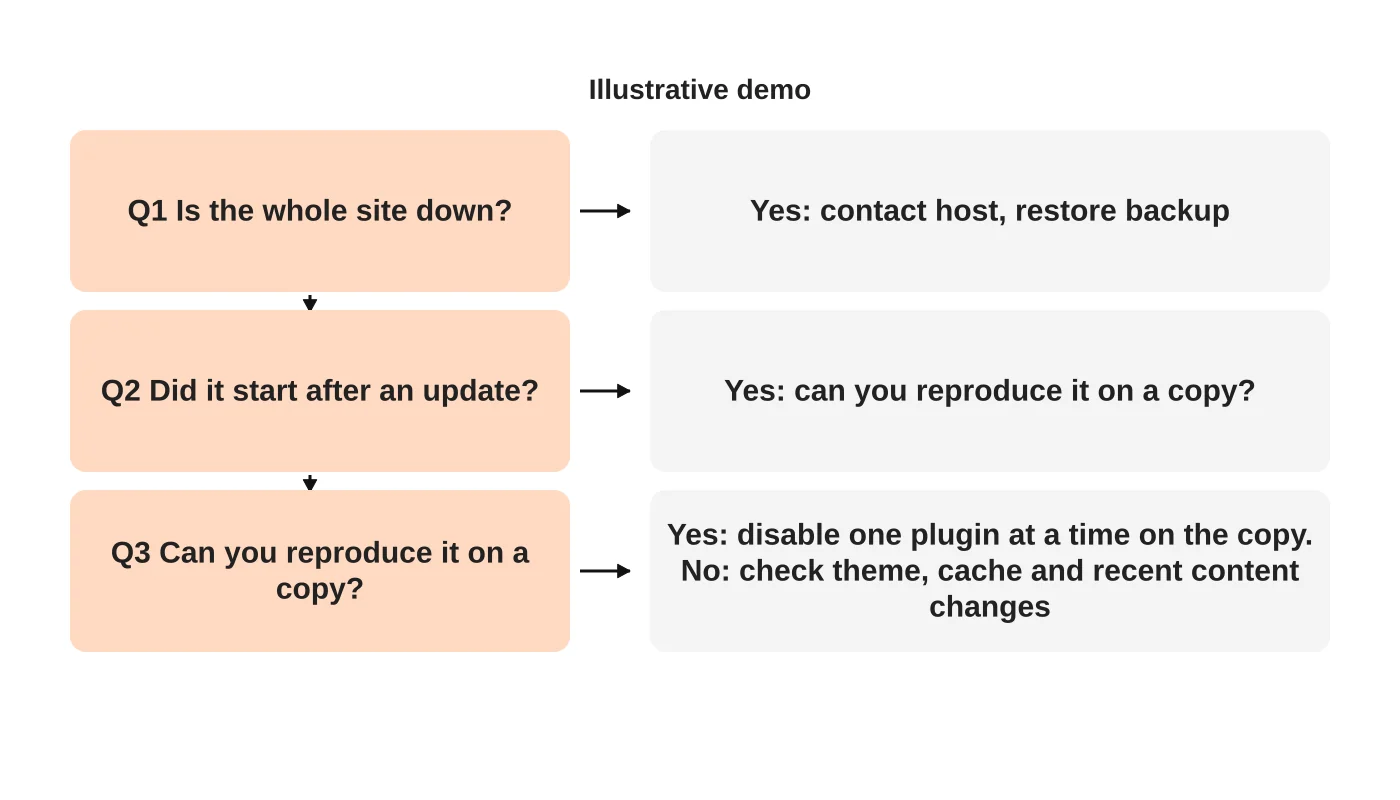
Confirm a recent backup exists and can be restored. If the site is down or customers are affected, restoring the last good state may be the fastest safe fix, then investigate on a copy. If you must act on the live site, change one thing at a time and note it. Tell your team and host what you are doing.
Step 3: isolate on a copy
Create a staging copy that reproduces the problem. On the copy, switch to a default theme and disable plugins one at a time, or in halves, retesting after each step until the symptom disappears. Check clearing caches too, since stale files often mimic a conflict. Never run these tests on live customers.
Step 4: test compatibility
Once you know the plugin, check its changelog, support notes and compatibility information for your WordPress and PHP versions. Look for a newer fixed release, a documented setting or a known issue. Options include waiting for a fix, rolling back that plugin to the previous version on staging first, replacing it or asking the vendor for help. Weigh any security fix against the risk of staying on an old version.
Step 5: document the fix and prevention
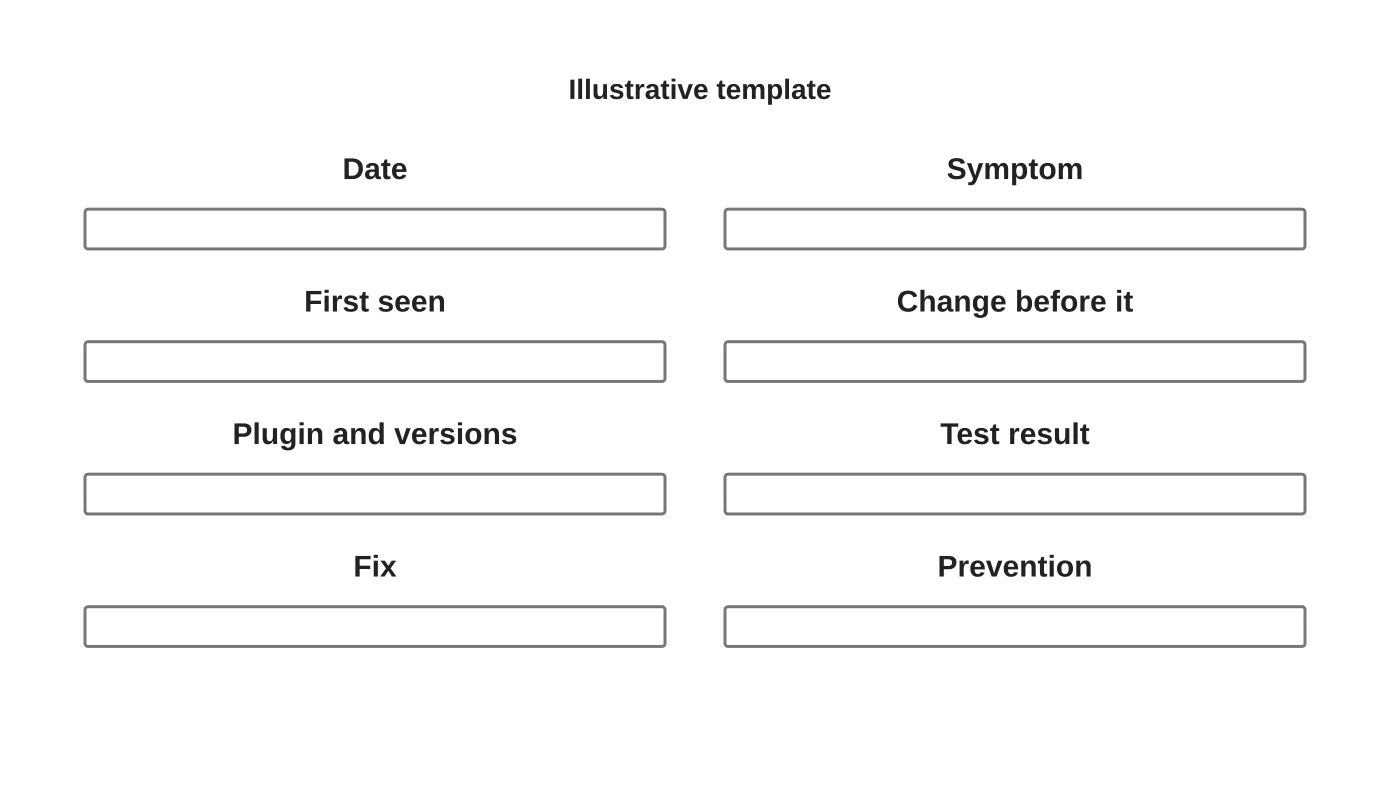
Record the symptom, cause, fix and what would have caught it earlier, such as testing forms after every update. Feed the lesson back into your update process. See updating WordPress safely and what a maintenance plan should include.
Frequently asked questions
Should I roll back the plugin?
On a copy first. Rolling back can leave a known vulnerability, so decide with evidence.
How do I know it is a conflict, not a hack?
Unexpected files, unknown admin users or spam content point to a compromise. A break right after an update points to a conflict.
Can my host fix it?
They can help with server errors and restores, but plugin conflicts may be outside their scope.
Should I contact the plugin author?
Yes, with your versions, steps to reproduce and screenshots.
Sources
Get help isolating it
Web Design Davao’s website maintenance team can discuss ongoing website care and clear support responsibilities. Get in touch.