
Quick answer
To fix an HTTPS warning, first identify which one you have: an expired certificate, a hostname mismatch, or insecure files on a secure page. Check the certificate’s expiry and the names it covers, find mixed content in the browser console, test redirects and forms, and assign someone to own renewals.
- Screenshot the exact warning text, browser and page, and test another browser and a phone.
- Make sure the certificate covers every address visitors use, including with and without www and any subdomains.
- Fix mixed content at the source, such as old image, script or font links, and back up before bulk search-and-replace.
A browser shows “Not secure” or a full-page warning. Visitors leave and trust drops. The cause may be an expired certificate, a hostname mismatch or insecure files on an otherwise secure page. Each has a different fix.
This guide helps owners of business sites and online shops diagnose which warning they have and what to check. Wording varies by browser, so check your browser’s current messages. For platform context see is WordPress a secure CMS and the importance of secure web hosting.
Step 1: identify the warning
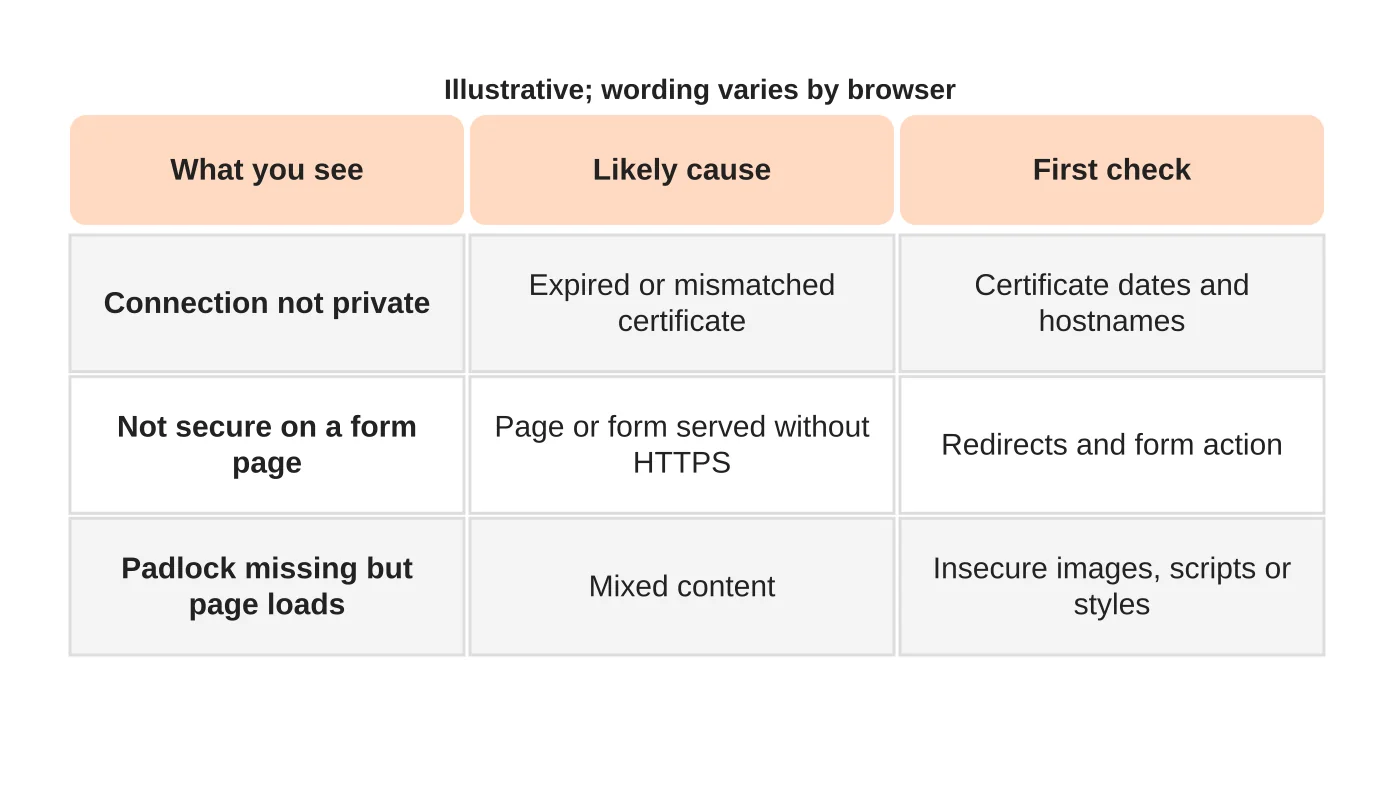
Take a screenshot and note the exact text, the browser and the page. A full-page certificate warning is different from a small “not secure” label on a form page, which is different from a page that loads but has missing images or broken styles. Test in another browser and on a phone to see if it is the same.
Step 2: check the certificate and hostnames
Open the certificate details in the browser. Check the expiry date, the issuer and the names it covers. Make sure it covers every address visitors use, such as the version with and without “www” and any subdomains. If it expired, renew it. If the names do not match, the certificate must be reissued to cover them, or traffic redirected to the covered name. After a host move or DNS change, check the site points to the right server. See moving a website to a new host.
Step 3: inspect mixed assets
Mixed content means a secure page loads some files over an insecure address. Open the browser’s developer console, which lists blocked or insecure items. Typical causes are old image links, scripts, fonts or embedded content with an insecure address saved in pages or settings. Fix the source: update the address in the content, theme or plugin settings. Test on a copy first when using a bulk search-and-replace, and keep a backup.
Step 4: test forms and redirects
Confirm every insecure address redirects to the secure one with a single clean redirect. Submit each form and check it posts to a secure address. Test login, search and checkout. Check that links, canonical tags and sitemaps use the secure version. Re-test after fixes in more than one browser.
Step 5: assign renewal ownership
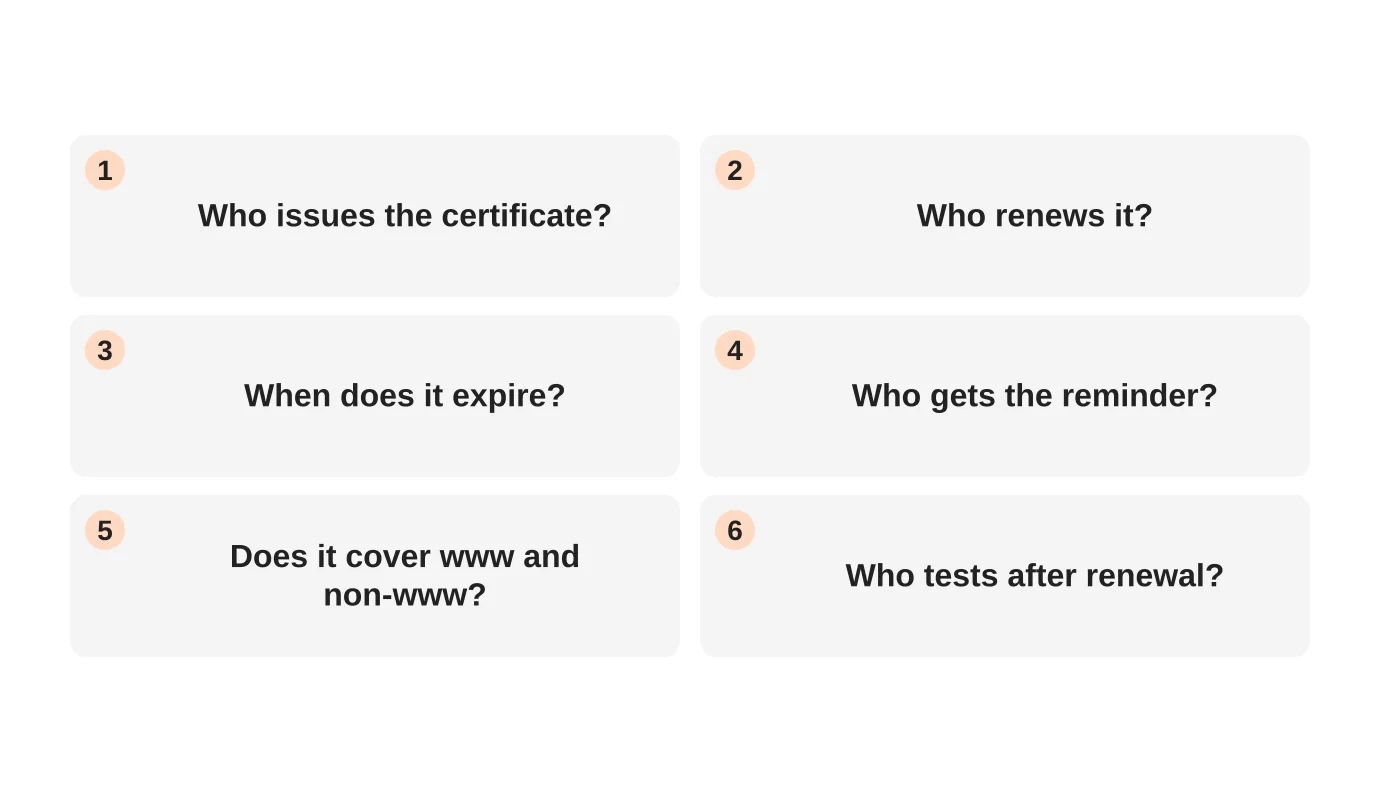
Many certificates renew automatically, but not always. Decide who owns each renewal, where reminders go and who tests afterwards. Put the date in a shared calendar. See domain, hosting and email responsibilities.
Frequently asked questions
Does HTTPS make my site secure?
It protects data in transit. It does not secure the site’s software or accounts.
Is a free certificate acceptable?
Many are widely trusted. Check your host’s options and responsibilities.
Will fixing this help SEO?
A secure, error-free site is part of a good experience, but do not expect a ranking jump.
What if the warning appears only for some visitors?
Check device dates, networks and caches, as well as the certificate chain.
Sources
Fix and prevent
Web Design Davao’s website maintenance team can discuss ongoing website care and clear support responsibilities. Get in touch.