Quick answer
After replacing a booking tool, find broken customer journeys by listing every touchpoint that sends people to booking, including buttons, menus, service pages, emails, text reminders and social profiles. Search the site for the old tool’s address, update each link and widget, then make a real test booking and confirm the confirmation arrives.
- Search your site for the old tool’s address and check email and message templates, which are easy to forget.
- Test embedded widgets on a phone and a computer, and do not rely on redirects from the old tool.
- Record an owner for each touchpoint, then cancel the test booking and tell staff afterwards.
A new booking tool can leave old links and reminders pointing at the previous tool. This article helps coordinators find broken customer journeys by checking old links, embedded widgets and end-to-end confirmations. It is written for service business website coordinators and ends with the decision, owner and next step to record.
An illustrative scenario
This is a hypothetical example, not a Web Design Davao client case.
Situation. A new booking tool is installed, but old links and reminders still point to the previous tool.
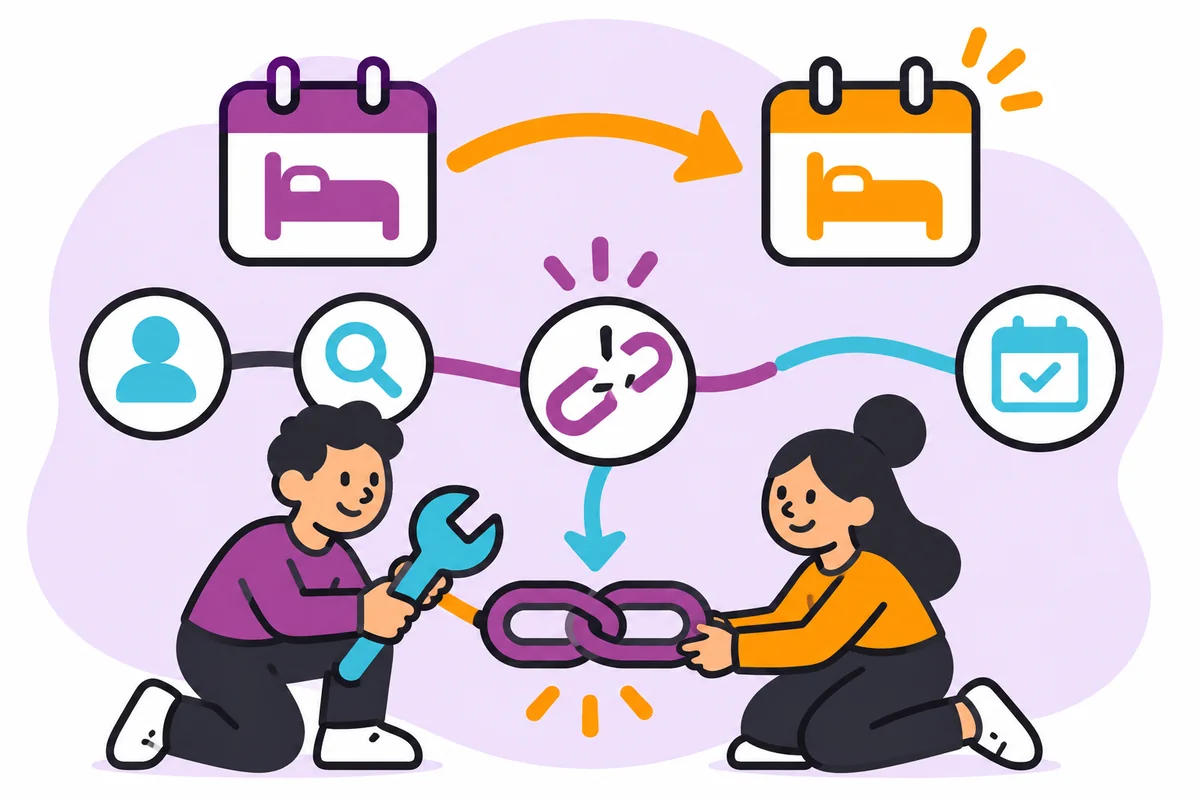
What happens. After switching booking tools, a coordinator lists every place a booking link or reminder appears: the header button, the footer, three service pages, the confirmation email template and the social profiles. She finds the reminder email still sends people to the old tool. She fixes it, then books a real test appointment and confirms the confirmation arrives.
Old links
List every touchpoint that sends people to booking: buttons, menu items, service pages, emails, text reminders, social profiles and printed material. Use the touchpoint and previous destination fields. Search the site for the old tool’s address, and check email and message templates, which are easy to forget.
Embedded widgets
Check embedded widgets, forms and buttons, and update each to the new destination. Use the new destination field. Test on a phone as well as a computer, because widgets can behave differently. Redirect old links if the old tool allows it, but do not rely on that.
End-to-end confirmation
Run an end-to-end test: make a real booking, receive the confirmation and check the reminder. Use the test result, confirmation and owner fields. Cancel the test booking afterwards and tell staff. Record who owns each touchpoint so future changes are covered.
Booking migration QA checklist
Use this at the point described above. The workflow owner completes it and a named reviewer checks it. A completed row shows that the information, owner and next step are recorded; it does not prove the outcome. Keep it somewhere the team can edit, and keep it free of passwords, tokens and real client records.
Blank copy
| Touchpoint | Previous destination | New destination | Test result | Confirmation | Owner |
|---|---|---|---|---|---|
Illustrative completed row (hypothetical)
| Touchpoint | Previous destination | New destination | Test result | Confirmation | Owner |
|---|---|---|---|---|---|
| Footer button | Old booking address | New booking address | Passed | Confirmation email received | Web coordinator |
Working through the completed row
In the row, the footer button pointed to the old booking address, now points to the new one, passed testing, produced a confirmation email and is owned by the web coordinator.
Common mistakes
- Forgetting email and text reminders.
- Not testing on mobile.
- Relying on redirects.
Questions to settle before you rely on it
- Which links, emails and messages pointed to the old tool?
- What do they point to now?
- Who tested each?
How you know it is complete
The checklist is complete when each touchpoint has an old and new destination, test result, confirmation and owner. Record who reviewed it and the date.
Where you may not have the answer
The old tool cannot redirect visitors. Update every link and keep a note of any printed material that cannot be changed. The handoff, not a guess, is the correct next step.
Your next action
Search your site for the old tool’s address.
Ask Web Design Davao to review this workflow and scope the website or marketing support required. Website maintenance & security arrangements are agreed individually; nothing here assumes a particular service, role or timing is already available.
How Web Design Davao works
- Enquiries are generally answered within four hours during support hours (Monday to Friday, business hours), with after-hours help for emergency requests. Scope is agreed individually.
- Preventative website maintenance includes keeping plugins up to date and reviewing website code for known vulnerabilities. This reduces exposure to attack; it does not guarantee a site cannot be compromised. See website updates and uptime monitoring.
Frequently asked questions
Where should I look for old booking links?
Check buttons, menu items, service pages, emails, text reminders, social profiles and printed material. Search the site for the old tool’s address, and check email and message templates, which are easy to forget but often still point to the previous tool.
How do I test the new booking tool end to end?
Make a real booking, receive the confirmation and check the reminder. Test on a phone as well as a computer. Afterwards, cancel the test booking and tell staff, and record who tested each touchpoint and what the result was.
What if the old tool cannot redirect visitors?
Update every link yourself and keep a note of any printed material that cannot be changed. Redirects are worth setting up if the old tool allows it, but do not rely on them to catch every visitor.