Quick answer
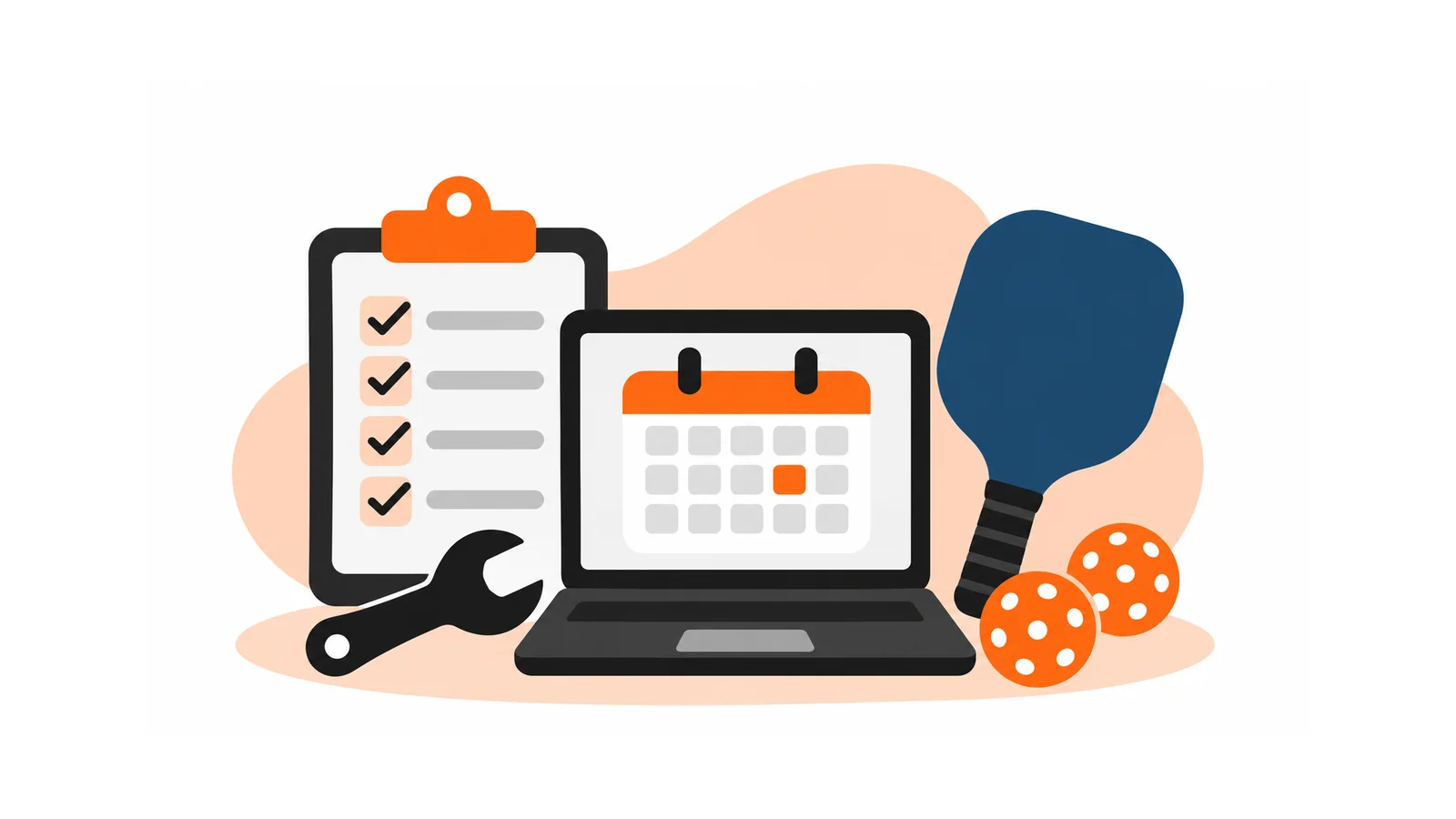
Maintain a pickleball booking website by checking each month that the key customer journeys still work: find prices and times, book a court, pay, receive a confirmation, cancel or change a booking and contact you. Test on a phone, take a backup before updates and assign who handles incidents.
- Check both sides of payment: a successful payment that creates no booking is worse than a failed one.
- Back up before updating, test on a copy where possible, update at a quiet time and plan the rollback.
- Ask your host or maintenance provider how often backups run, who restores the site and what is not backed up.
A booking website is part of your business operation, like front-desk reception. If a payment fails or confirmation emails stop, customers may not tell you; they simply go elsewhere. Regular checks catch problems early. This guide is for operators with a live booking or membership site. It covers recurring care; hosting choice is a different topic, covered in hosting a pickleball booking website.
1. Create a critical customer-journey checklist
List the journeys that must always work:
- find prices and times,
- book a court,
- pay,
- receive a confirmation,
- cancel or change a booking,
- contact you,
- join a membership or register for an event, if you offer them.
Put them in order of importance. These are your checks every month, and after any change.
2. Check booking, payment and confirmation outcomes
Do the journey as a customer, on a phone.
- Make a test booking and confirm that the court is held and the venue is notified.
- Make a test payment and then refund it, if your payment tool allows testing. Use only test or genuine small payments you control, and never enter anyone else’s details. Use the payment provider’s test mode where available.
- Check that the customer confirmation arrives, including in spam, and that the details are right.
- Cancel the test booking and confirm that the court is released.
A “successful” payment that does not create a booking is worse than a failed payment, because the customer thinks they are booked. Check both sides.
3. Test updates safely and plan rollback
Software, plugins and themes need updates for security and reliability, but an update can break a booking feature. Safer practice:
- take a backup before updating,
- test on a copy of the site if you can, then on the live site,
- update at a quiet time, not minutes before registration opens,
- know how to undo the update and who does it.
For what a maintenance plan typically includes, see what to include in a website maintenance plan.
4. Review broken links, policies and changing prices
- Click every main link, button and phone number.
- Check that prices, hours, cancellation terms and contact details match what is actually offered.
- Update seasonal content, event dates and holiday hours. Remove past events from “upcoming” pages.
- Check that your Google listing and social pages show the same details. See getting your courts found on Google.
5. Check backups and recovery responsibilities
A backup you have never restored is an untested assumption. Ask your host or maintenance provider:
- how often backups run and where they are stored,
- how long you keep them,
- who restores the site and how long it usually takes,
- what is not backed up, such as data held by third-party booking or payment tools.
6. Assign incident escalation and reporting
Decide who is told, in what order, when something goes wrong: the person who found it, the website owner, the host, the booking tool provider and the payment provider. Write down what to tell customers and where. After each incident, record what happened, what fixed it and what will prevent it next time. If you want a regular review of changing details, bookings and notifications, see our website maintenance service.
Monthly website-care checklist
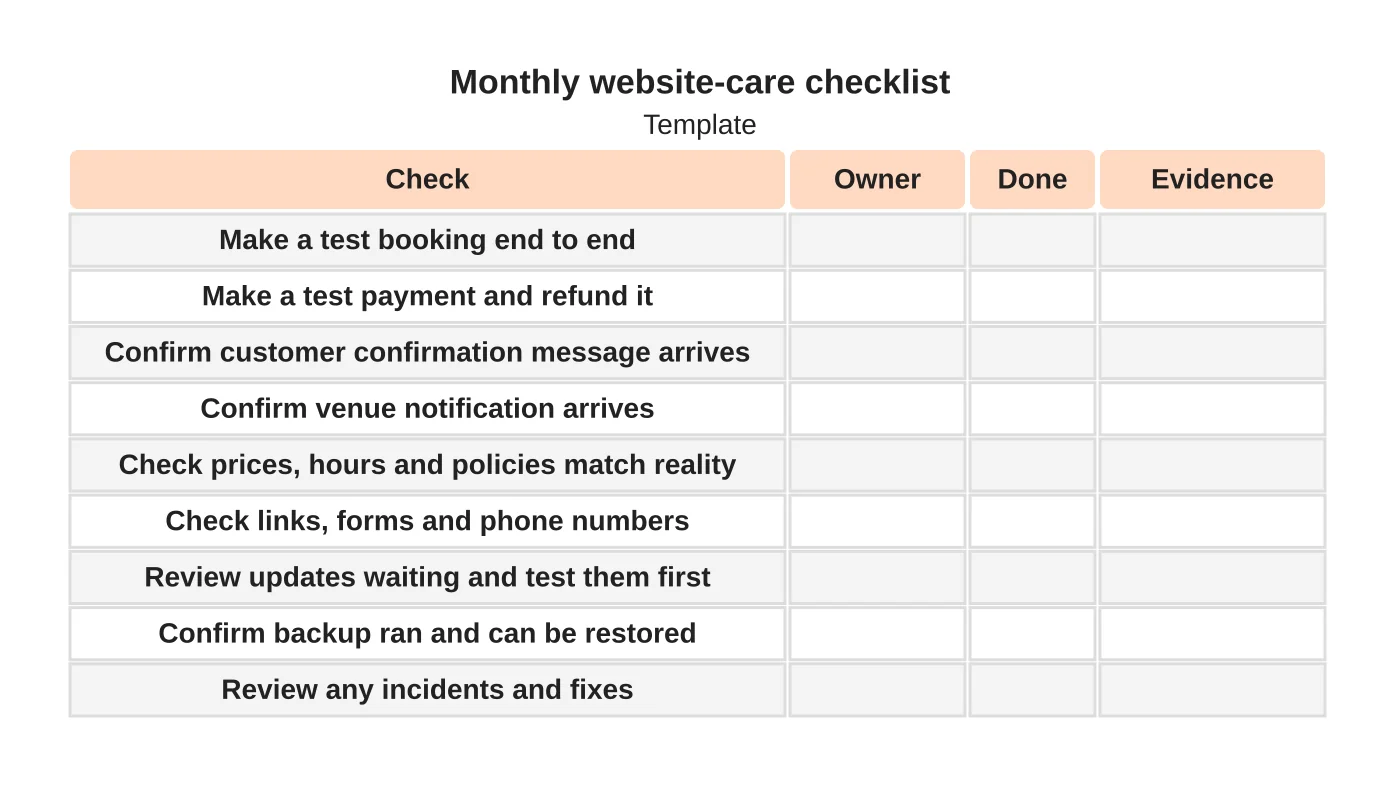
| Check | Owner | Done | Evidence |
|---|---|---|---|
| Test booking end to end | |||
| Test payment and refund | |||
| Customer confirmation received | |||
| Venue notification received | |||
| Prices, hours and policies match | |||
| Links, forms and phone numbers work | |||
| Updates reviewed and tested | |||
| Backup ran and can be restored | |||
| Incidents reviewed |
Evidence can be a screenshot or note, with private customer and payment data removed.
Related guidance: the pickleball court website checklist, online bookings or Messenger and membership websites. The overall plan is in how to market a pickleball court business.
Next step
Discuss ongoing care for your venue’s website.
Frequently asked questions
How should I test a pickleball booking and payment?
Do the journey as a customer on a phone: make a test booking, confirm the court is held and the venue notified, then cancel and check the court is released. Use only the payment provider’s test mode or small payments you control, never anyone else’s details.
Why do backups need to be tested?
A backup you have never restored is an untested assumption. Ask who restores the site and how long it usually takes, how long backups are kept, and what is not backed up, such as data held by third-party booking or payment tools.
What should we do when something goes wrong on the site?
Decide in advance who is told and in what order: the person who found it, the website owner, the host, the booking tool provider and the payment provider. Write down what to tell customers, and after each incident record what happened, what fixed it and what prevents it next time.
Sources and notes
This routine is based on our own practice. No security, uptime or recovery commitment is stated or implied.