

Quick answer
When prices, staff or services change, search the whole site for the old fact, including menus, footers, service pages, posts, images with text, PDFs, form confirmations and automated emails, plus external profiles. Confirm the new fact in writing from its owner, update every connected asset, test and sign off, then log the change.
- Get the new wording and effective date in writing from the information’s owner, not from a verbal message.
- Replace images and PDFs as well as text, and set a redirect to the closest relevant page when retiring one.
- After updating, submit forms, check notification emails, search again for the old fact and have a second person check.
A clinic changes a consultation fee, a resort updates a package or a supplier adds a staff contact. The website homepage is updated, but an old fee sits on a service page, a PDF and a form confirmation. Small operational edits create inconsistencies that confuse customers and cost trust.
This guide gives a QA checklist and change template for these routine edits. It differs from a strategic review; for that see a content audit: keep, refresh, merge or delete. For planning a site build, see what to know before website development. Photography changes are covered in a photography brief.
Step 1: locate the affected pages
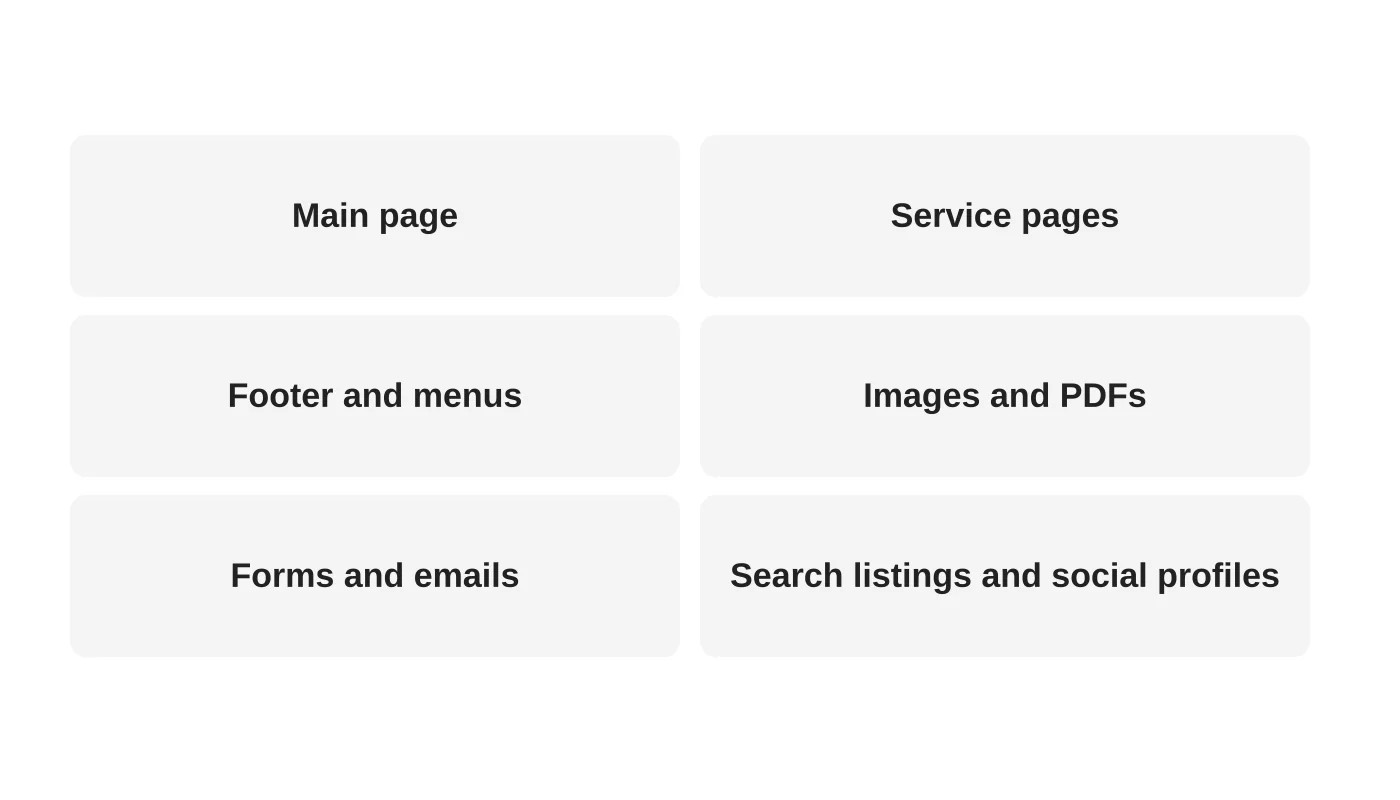
Search the site for the old fact: the old price, the person’s name or the service name. Check menus, footers, service pages, blog posts, images with text, downloadable PDFs, form confirmation messages and automated emails. Also check places outside the site that repeat the fact, such as your Google Business Profile and social profiles.
Step 2: confirm the approved facts
Get the new fact from the person who owns it, in writing: exact wording, effective date and any conditions. Do not take it from a verbal message or guess. For anything regulated, such as health or financial claims, have the right person review it. This is general information, not legal advice. Check your situation with a qualified adviser.
Step 3: update connected assets
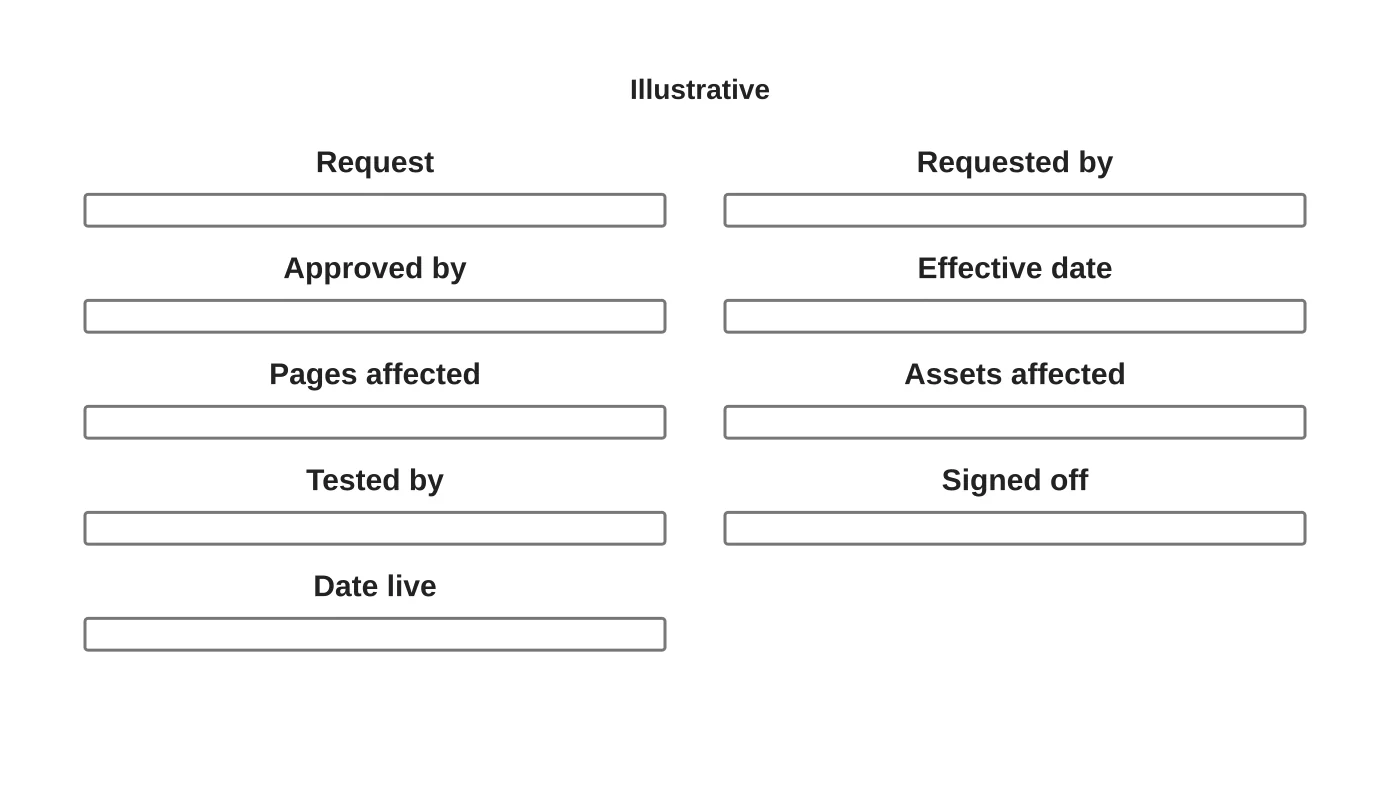
Update every place you found, not only the main page. Replace images and PDFs, not just text. Update structured data if your site uses it. Set the effective date, and if the change takes effect later, schedule it rather than editing early. Where you retire a page, set a proper redirect to the closest relevant page.
Step 4: test and sign off
Review each changed page on a phone and a computer. Submit forms and check confirmation messages and notification emails. Search the site again for the old fact to be sure it is gone. Have a second person check. Record who tested and when, and sign off using the template.
Step 5: record and review
Keep a log of changes. Review every quarter for facts that go out of date, such as opening hours and staff. Consider a standing owner for each fact. For link and download problems, see broken links and missing downloads.
Frequently asked questions
Who should approve changes?
The person accountable for that information.
How fast should an update go live?
As fast as accuracy allows. A wrong fact is worse than a short delay.
Should I keep old prices for reference?
Not on public pages unless clearly dated and needed.
What about cached pages?
Clear caches and check again after updating.
Sources
Keep your site consistent
Web Design Davao’s website maintenance team can discuss ongoing website care and clear support responsibilities. Get in touch.