Quick answer
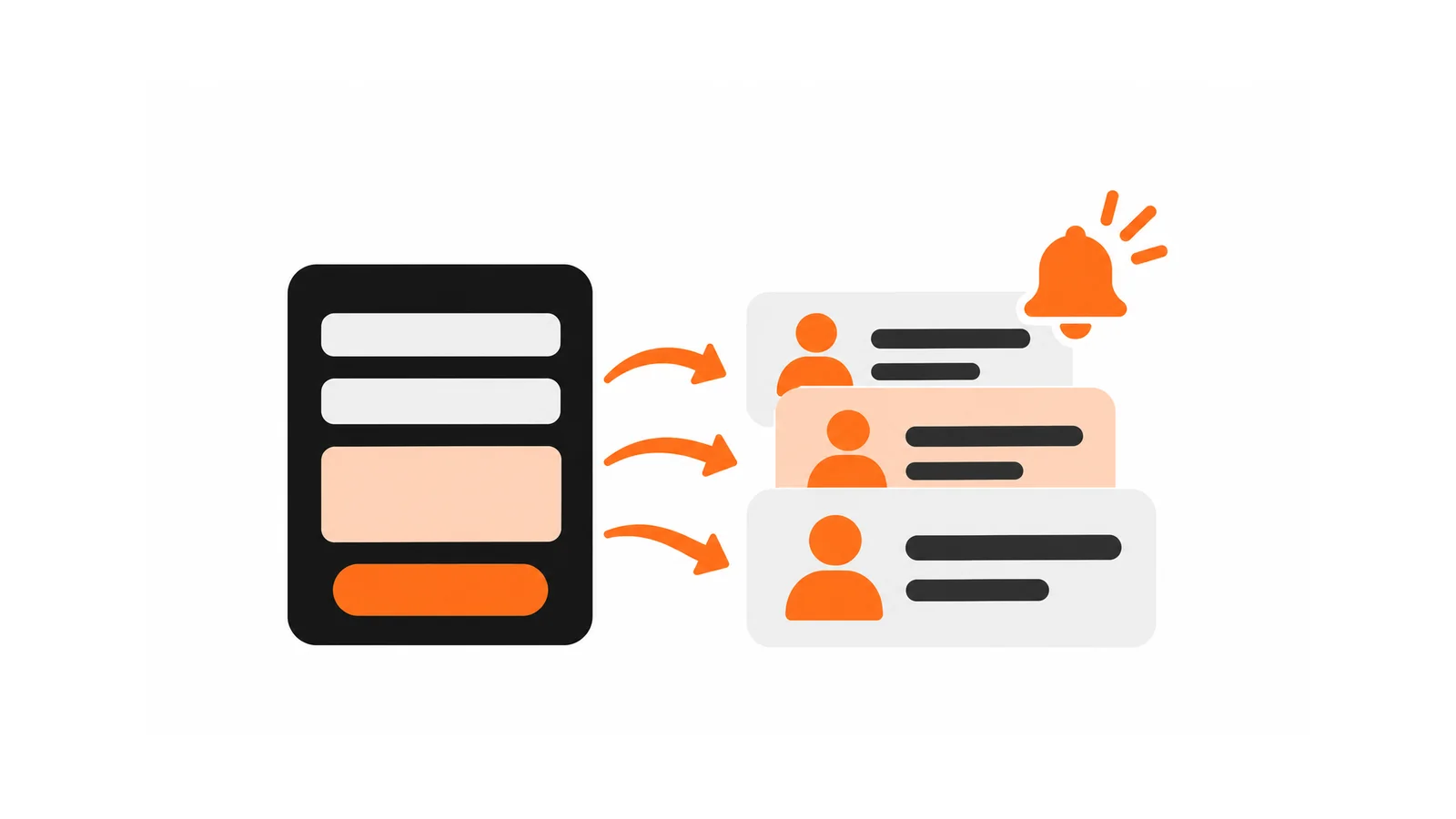
To connect a website form to a CRM, design the form and follow-up process together so every enquiry creates one record, reaches one named person and ends with an outcome. Map essential fields, assign an owner and backup, handle duplicates and failures, test consent, delivery and follow-up, and record outcomes such as booked, quoted, won or lost.
- Avoid sending health information, ID numbers or financial data into a CRM without a clear purpose and security.
- Match duplicates on email or phone and update the existing record with a note instead of creating a second.
- If a submission cannot be delivered, keep a copy and alert a person rather than losing the enquiry.
A form that emails a general inbox works at low volume. As enquiries grow, they get lost, duplicated or answered twice. A CRM (customer relationship management system) can fix that, but only if the form and the follow-up process are designed together.
This guide is vendor-neutral. It describes a workflow and what to check. Verify any claims about a specific product’s capabilities against its current documentation before relying on them. Examples are illustrative.
The workflow
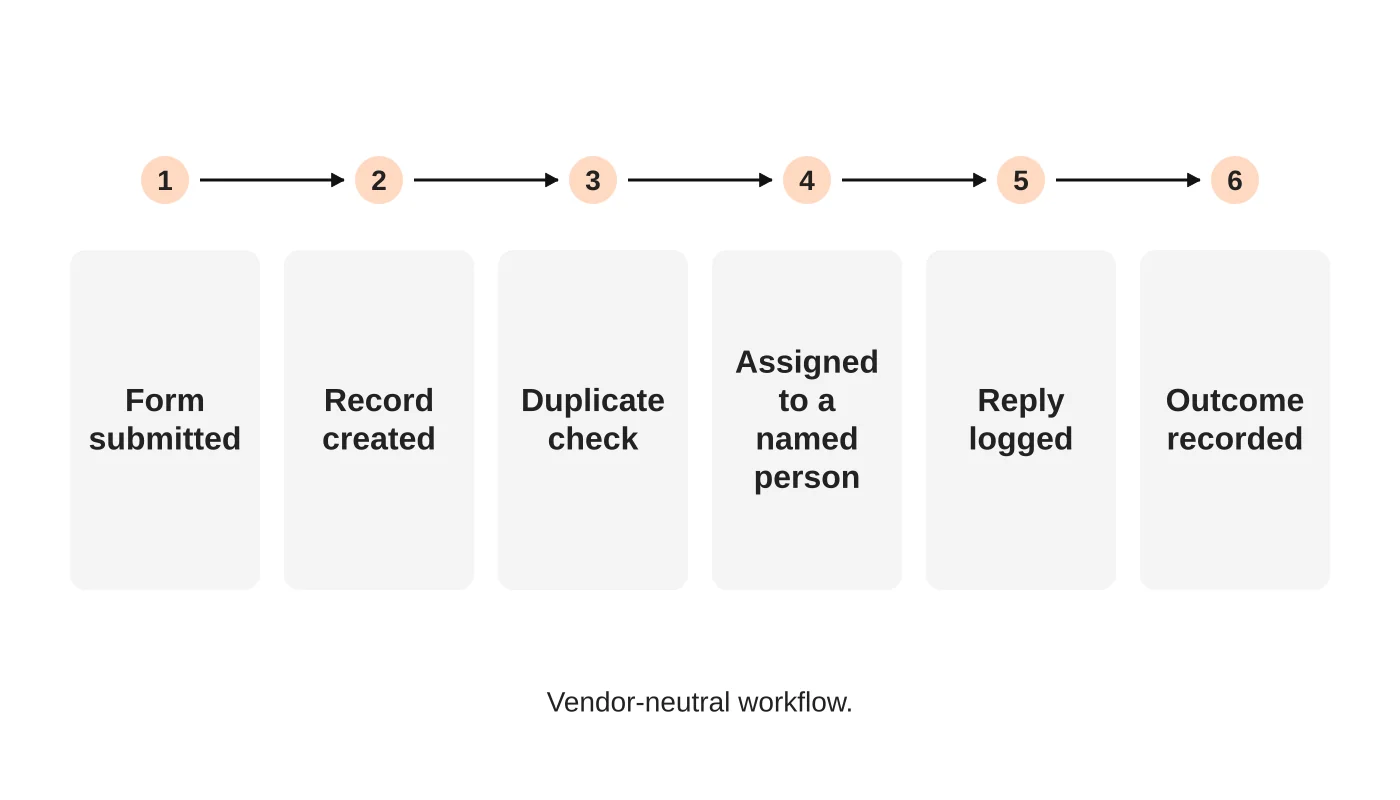
The aim is that every enquiry creates one record, reaches one named person and ends with an outcome. For measuring the result, see tracking website enquiries in GA4. For diagnosing missing form messages, see why contact form enquiries go missing.
Step 1: map essential fields
Decide which fields the CRM needs: name, contact details, service interest, source page and consent. Resist adding fields that nobody uses. Match each form field to a CRM field and decide how to handle free text. Do not send sensitive details such as health information, ID numbers or financial data into a CRM unless you have a clear purpose, security and approval. See the Data Privacy Act checklist. This is general information, not legal advice. Check your situation with a qualified adviser.
Step 2: assign a named person
Rotating, shared or “whoever sees it” ownership fails. Decide the rule: by service, by area or round-robin, plus a backup. Set a target reply time you can meet. Notify the owner by a channel they actually read.
Step 3: handle duplicates
People submit twice, use two emails or enquire by phone and form. Decide the matching rule, usually email or phone, and what happens on a match: update the existing record and add a note rather than creating a second one. Test it.
Step 4: handle failures
Integrations break: an expired connection, a changed field or a CRM outage. Decide what happens when a submission cannot be delivered. At minimum, keep a copy and alert a person. See maintaining scheduled jobs and webhooks.
Step 5: test consent, delivery and follow-up
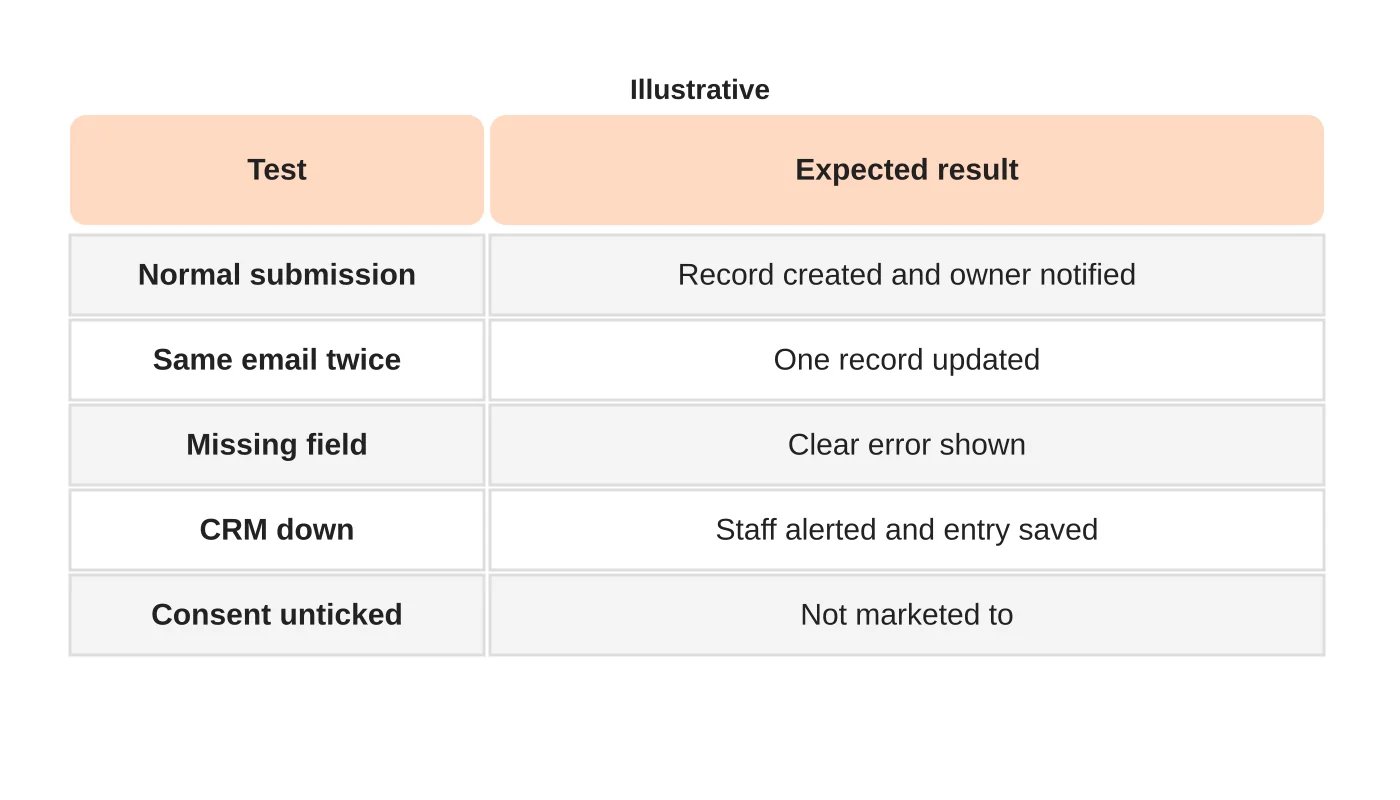
Run the test cases before launch and after any change. Check that people who did not consent are not added to marketing lists. Test on a phone. Keep a log of results.
Related reading: Service Reminders for Workshops: Connecting Website Records and Customer Follow-Up.
Step 6: record outcomes
Add a simple outcome field: booked, quoted, won, lost, not suitable and why. This is the data that shows which pages and sources bring useful enquiries. For tools that book time directly, see online booking tools for service businesses. For the structure that brings the right visitors, see website structure and leads.
Frequently asked questions
Which CRM should I choose?
Choose by your workflow and budget. Compare current options and ask for a trial.
Do I need a CRM at all?
Not at low volume. A well-run shared inbox and a log can be enough.
Can I connect without code?
Often, with built-in integrations or automation tools. Check reliability and who maintains them.
What about WhatsApp or Messenger?
Treat them as channels that feed the same process. Do not leave them outside it.
Sources
Plan your enquiry workflow
Web Design Davao’s web design team can discuss connecting your forms to a follow-up process. Get in touch.