Quick answer
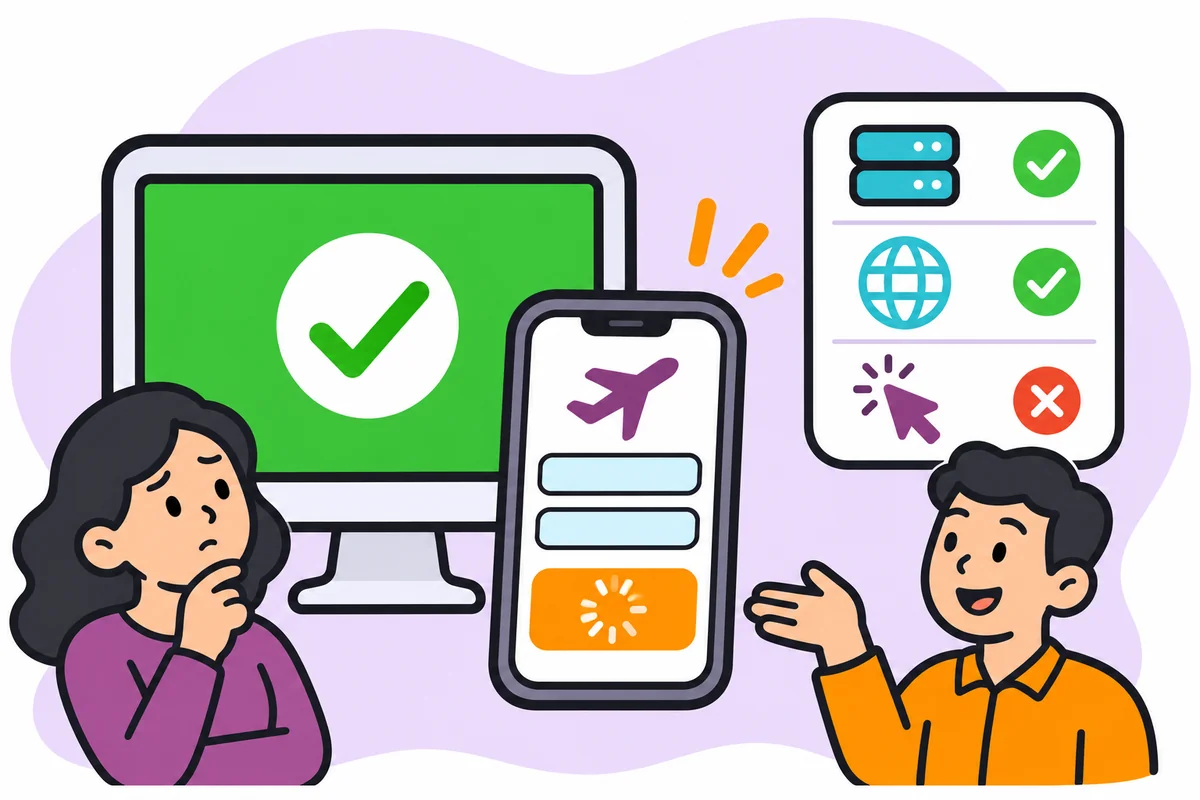
A green uptime dashboard only tells you a monitored address responded, not that customers can complete a task such as booking. To avoid mistaking it for a working business, write down what each monitor checks, test each key customer journey end to end, and name who responds when an alert fires.
- Write down exactly what each monitor checks, because a home page monitor cannot see a broken booking form.
- Test key customer tasks end to end and record any task with no test as a gap, not as fine.
- In an incident, record what the monitor showed and what customers experienced, keeping supplier reports separate.
A green uptime dashboard tells you a monitored address responded; it does not tell you customers can book. This article shows owners how to define monitoring scope, test a customer journey and record incident context so a green light is not mistaken for a working business.
An illustrative scenario
This is a hypothetical example, not a Web Design Davao client case.
Situation. An uptime dashboard stays green while customers cannot complete a booking.
What happens. The owner finds that the monitor checks only the home page, adds a test of the booking journey and names who responds when it fails.
Background
An uptime monitor usually checks that an address responds. That is useful, but it does not prove a customer can complete a task. A page can load while the booking form errors, the payment step times out or the confirmation email never sends. Better monitoring follows the tasks customers care about: submit the enquiry, reach the booking page, see current prices. Some of those can be tested automatically and some need a periodic manual check. Whatever you choose, someone must own the alert and know what to do.
Monitoring scope
Write down exactly what each monitor checks: a page, a port or a full journey. Use the monitor target and customer task fields. A monitor that loads the home page cannot see a broken booking form, so say so rather than assuming coverage.
Customer journey tests
For each key customer task, such as booking or sending an enquiry, state the expected result and test it end to end, manually or with a tool your provider supports. Use the expected result and gap fields. Record any task with no test as a gap, not as fine.
Incident context
When an incident occurs, record what the monitor showed, what customers experienced and when each was noticed. Use the alert owner and response fields. Distinguish observed availability from what a supplier reports, and keep both in the incident note.
Monitoring coverage worksheet
Use this at the point described above. The workflow owner completes it and a named reviewer checks it. A completed row shows that the information, owner and next step are recorded; it does not prove the outcome. Keep it somewhere the team can edit, and keep it free of passwords, tokens and real client records.
Blank copy
| Monitor target | Customer task | Expected result | Gap | Alert owner | Response |
|---|---|---|---|---|---|
Illustrative completed row (hypothetical)
| Monitor target | Customer task | Expected result | Gap | Alert owner | Response |
|---|---|---|---|---|---|
| Home page address | Customer can complete a booking | Confirmation page shown and email sent | Booking journey not tested | Operations manager | Add a booking test; supplier to confirm what it can monitor |
Working through the completed row
In the example, the home page is monitored but the booking journey is not. The register shows the gap, names the operations manager and plans a booking test, with the supplier asked what it can monitor.
Common mistakes
- Reading green as ‘working’.
- Having no test of key tasks.
- Relying only on supplier reports.
Questions to settle before you rely on it
- Which customer tasks matter most?
- Are they monitored or only the home page?
- Who is alerted?
How you know it is complete
The worksheet is complete when each key task has a monitor, expected result, known gap, owner and response. Record who reviewed it and the date.
Where you may not have the answer
The supplier’s report shows full availability while customers report problems. Record both, and ask the supplier what their monitor measures. The handoff, not a guess, is the correct next step.
Your next action
List your three most important customer tasks and note which have a test today.
Ask Web Design Davao to review this workflow and scope the website or marketing support required. Secure web hosting arrangements are agreed individually; nothing here assumes a particular service, role or timing is already available.
How Web Design Davao works
- Enquiries are generally answered within four hours during support hours (Monday to Friday, business hours), with after-hours help for emergency requests. Scope is agreed individually.
- Domains and hosting can be held in the client’s name or managed by Web Design Davao, depending on the client’s requirements. Either way, record who holds each login and who can recover it.
- Preventative website maintenance includes keeping plugins up to date and reviewing website code for known vulnerabilities. This reduces exposure to attack; it does not guarantee a site cannot be compromised. See website updates and uptime monitoring.
Frequently asked questions
Why can an uptime dashboard be green when customers cannot book?
An uptime monitor usually checks that an address responds. A page can load while the booking form errors, the payment step times out or the confirmation email never sends. A monitor that loads only the home page cannot see those failures.
How do I test a customer journey?
For each key task, such as submitting an enquiry or reaching the booking page, state the expected result and test it end to end, manually or with a tool your provider supports. Record any task with no test as a gap.
What if my supplier’s report shows full availability but customers report problems?
Record both and ask the supplier what their monitor measures. Distinguish observed availability from what a supplier reports, and keep both in the incident note along with who was alerted and how the team responded.