Quick answer
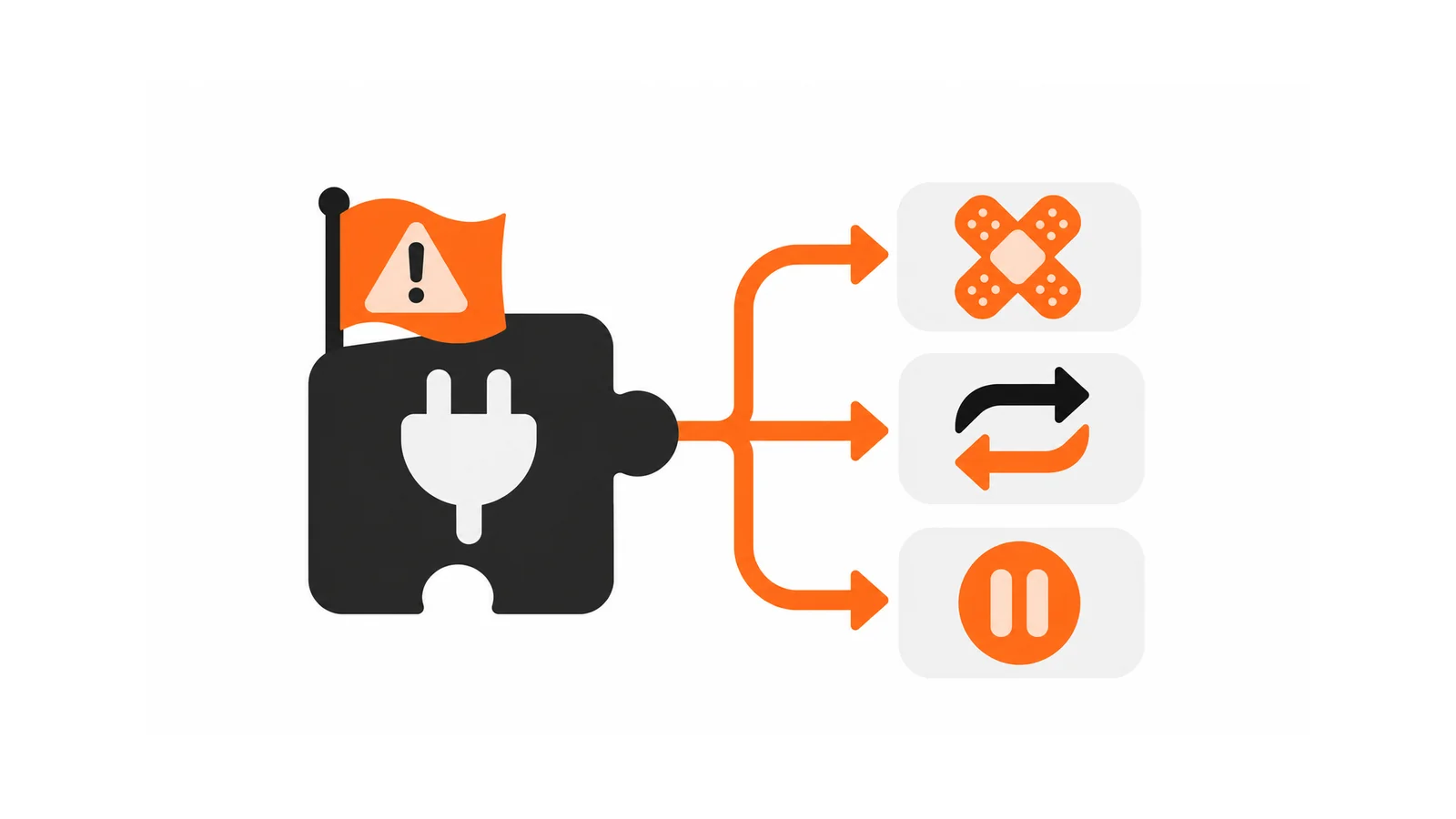
When a WordPress plugin vulnerability is announced, verify the advisory from the vendor or an established database, check whether you run an affected version, assess your exposure, then choose to patch, replace, disable temporarily or accept the risk with a named owner. Take a backup, test key journeys and record the decision.
- Use a vendor notice or established vulnerability database, not a social post, and never run or share exploit code.
- Patch after testing on a copy; disable temporarily after a backup if you cannot patch and the feature is optional.
- Remove unused plugins, prefer actively maintained ones, subscribe to vendor notices and review the plugin list quarterly.
An advisory says a popular plugin has a vulnerability. Social media fills with alarming claims. A preventative triage, run against a verified advisory, keeps you calm and acting on facts.
This is about prevention, not cleaning a compromised site; for that see signs your website has been hacked. It builds on website security layers for business. The worksheet uses no exploit detail and should be filled from an official or vendor advisory.
Step 1: verify the advisory and your version
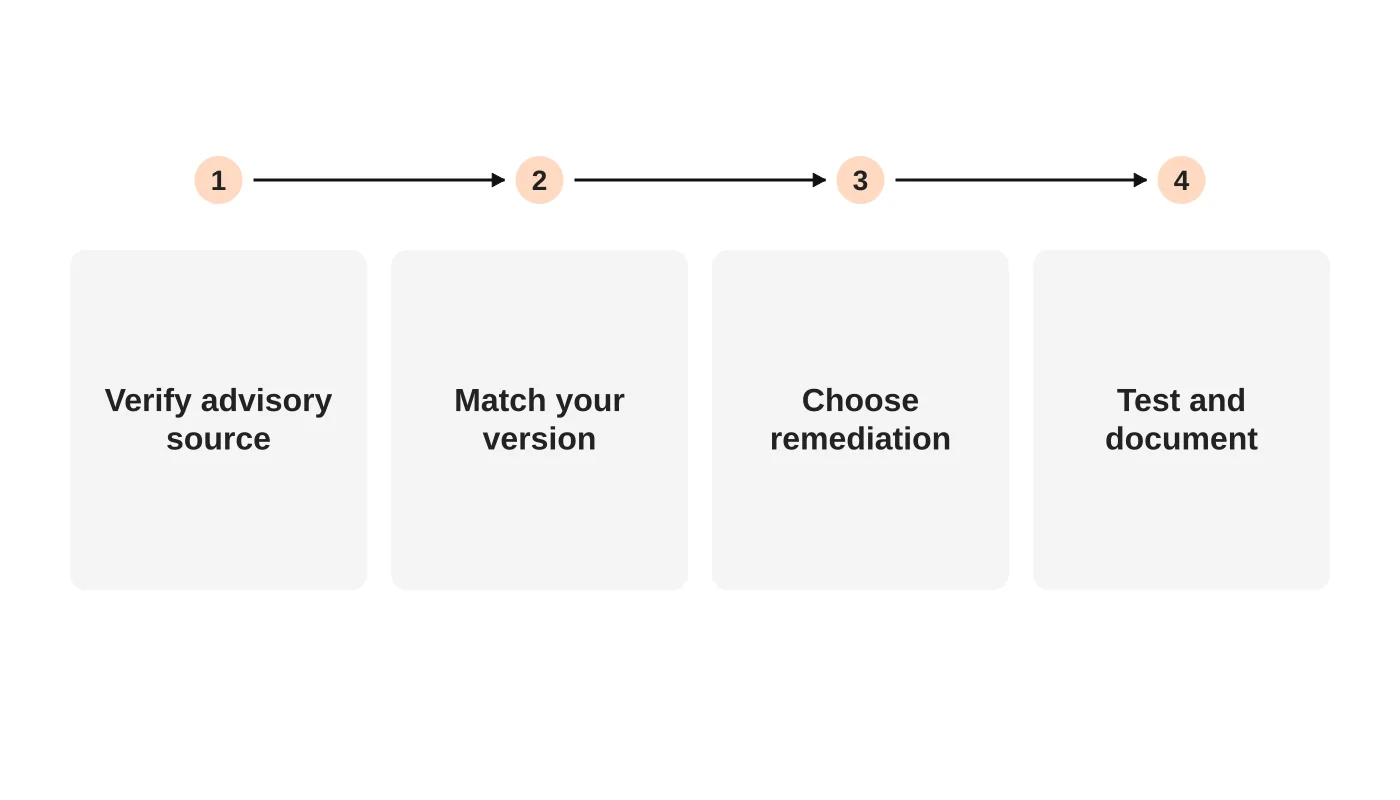
Use the plugin vendor’s notice or an established vulnerability database, not a social post. Note the affected versions and whether a fix exists. Check your site: is the plugin installed, active and which version? An inactive plugin can still pose risk if it remains on the server, so check how it is treated. Do not run or share exploit code.
Step 2: assess exposure
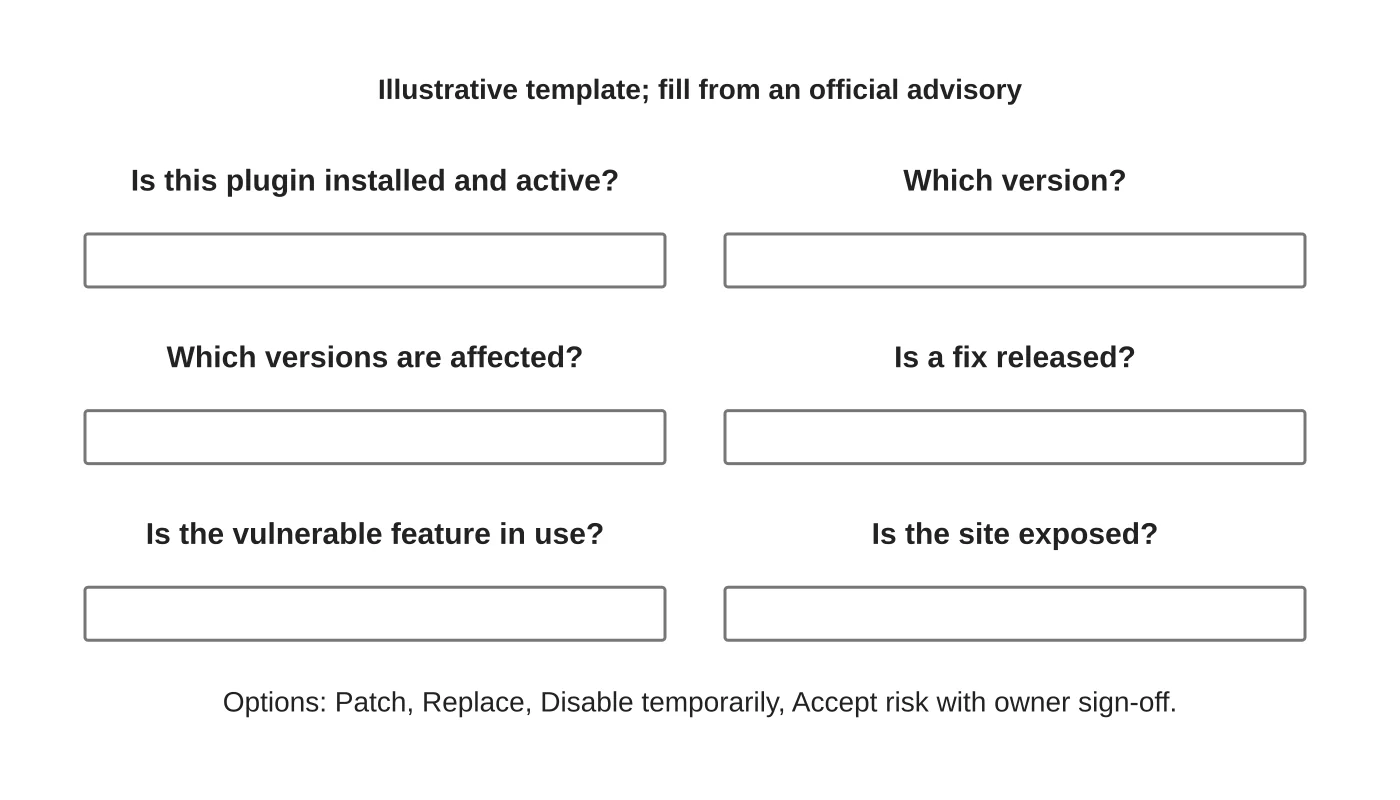
Ask what the flaw requires: a logged-in user, a particular feature or anything public. Check whether you use that feature, who can reach it and what data it touches. A form plugin on public pages differs from an admin tool behind restricted access. Rate the risk as high, medium or low using the advisory’s own details, and note your reasoning.
Step 3: select a safe remediation
- Patch: update to the fixed version after testing on a copy. See a safe WordPress update workflow.
- Replace: if the plugin is abandoned or no fix is coming, plan a replacement.
- Disable temporarily: if you cannot patch yet and the exposed feature is not essential, switch it off after a backup, and note the effect on the site.
- Accept the risk: only with a named owner, a reason and a review date.
Consider adding protections such as limiting access to affected features while you work, if appropriate.
Step 4: test and document
Test key journeys after the change. Record the advisory link, versions, decision, who approved it and the date. Check the site’s logs and accounts for unusual activity around the disclosure date. If you find signs of compromise, switch to incident response and see who responds when your website breaks.
Step 5: reduce future exposure
Remove plugins you do not use. Prefer actively maintained plugins. Subscribe to vendor notices for what you run. Review the list quarterly as part of maintenance. See what a maintenance plan should include.
Frequently asked questions
Should I update immediately?
After a backup and a quick test, for a verified fix that applies to you.
Is an inactive plugin safe?
Not necessarily. Remove what you do not need.
What if there is no fix?
Disable, replace or restrict exposure, and document the decision.
Do I need a scanner?
Scanners can help but do not replace reading the advisory.
Sources
Triage with a plan
Web Design Davao’s website maintenance team can discuss ongoing website care and clear support responsibilities. Get in touch.