Quick answer
Signs a website has been hacked include browser or search warnings, unexpected redirects, unknown administrator accounts, pages you did not write, sudden slowdowns and customer complaints. In the first hour, contain the site, preserve evidence, reset access, restore from a known-clean backup after updating, and notify the right people.
- Put the site in maintenance mode, tell your host, then take a full backup of the infected state as evidence.
- Change CMS, hosting, database, FTP/SFTP and email passwords from a clean computer, and turn on two-factor authentication.
- Do not just delete suspicious files or restore an old backup without updating, or the same entry point stays open.
The scariest part of a hacked website is that you may be the last to know. Legitimate business sites are regularly turned into quiet delivery points for malware and spam, and the owner often learns about it from a customer, a browser warning or a drop in search traffic.
This guide covers the signs to watch for, a calm first-hour response, and how to stop it happening again.
Why you might not know
Attackers who take over a site usually do not want to be noticed. They would rather your website keep working while it quietly sends visitors to scam pages, hosts spam pages for other businesses, or serves harmful downloads. Some compromises even hide from logged-in administrators, so the site looks fine to you and wrong to everyone else.
That is why the first alert often comes from outside: a customer, a hosting provider, or a search engine. The issue Your Website Could Be Hacking Your Customers in our newsletter covers how a site can end up harming its own visitors without the owner realising.
Early warning signs
Warnings your visitors see
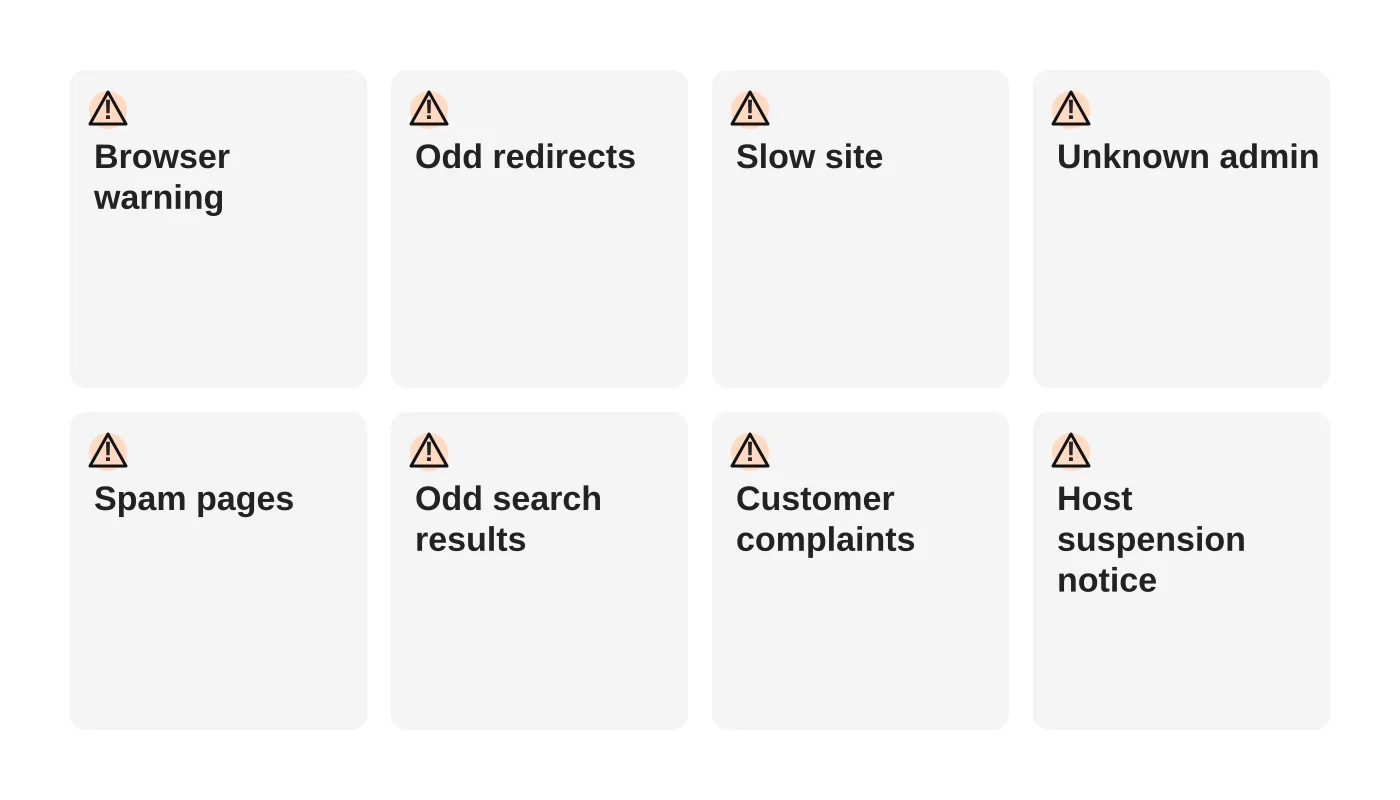
- Browser or search warnings. A red full-page warning, or a notice under your listing in Google saying the site may be harmful.
- Redirects. Visitors land somewhere else, often only on mobile, only from search, or only the first time.
- Pop-ups and strange banners you did not add.
Changes you can spot in the site
- Unknown administrator or editor accounts.
- Pages or posts you did not write, especially about pills, gambling, loans or luxury goods.
- Files changed recently that nobody on your team touched.
- Contact forms or checkout pages behaving oddly, such as sending enquiries to a different address.
Signals from your tools and customers
- Sudden slowdowns or outages with no new content.
- Search results showing odd titles, or traffic dropping for no clear reason.
- Your host suspending the site or emailing about suspicious activity.
- Customers reporting spam emails that appear to come from you, or antivirus software blocking your pages.
One sign alone is not proof. Several together, or any browser warning or unknown admin account, should be treated as an incident until shown otherwise.
Related reading: 7 Signs It’s Time to Invest in Professional Website Care Services.
The first hour: what to do
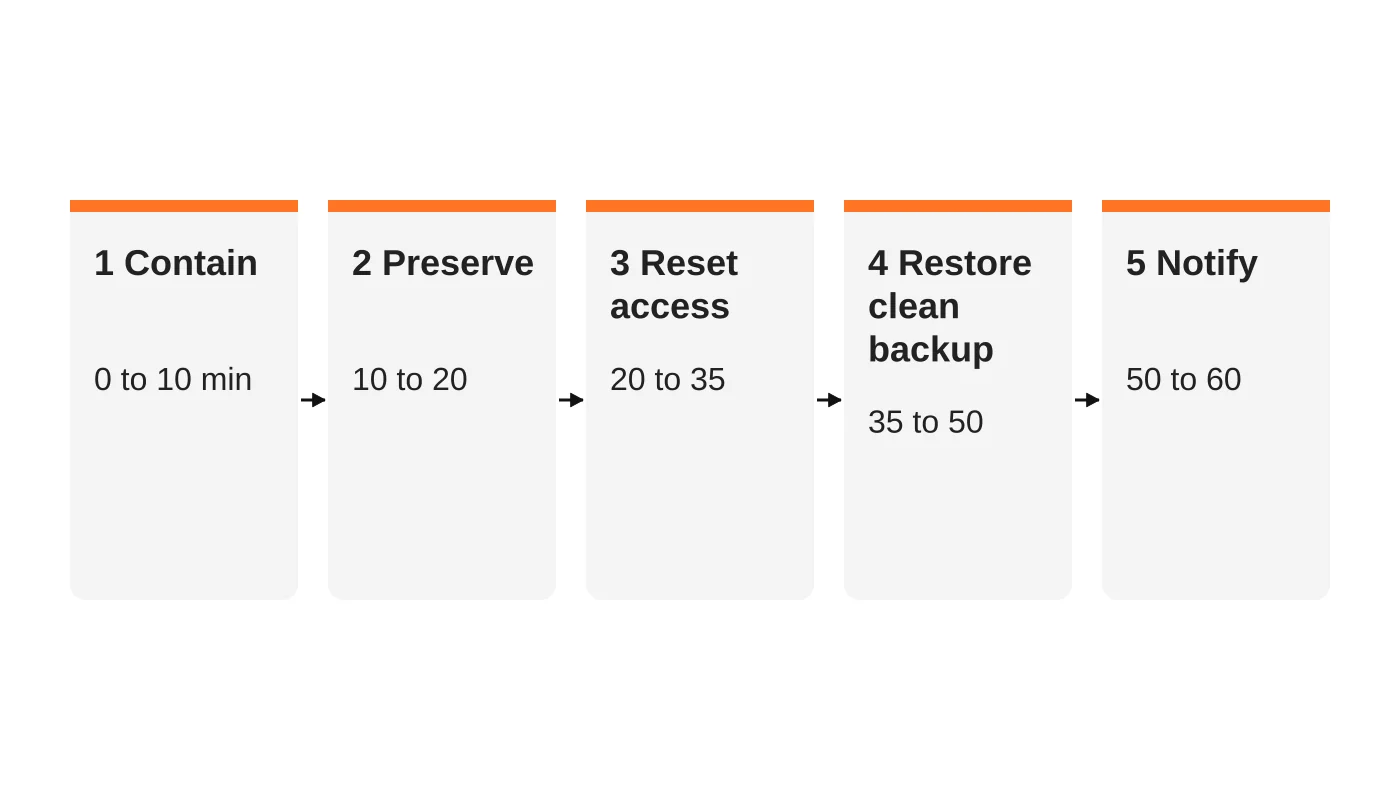
1. Contain (minutes 0 to 10)
- Put the site into maintenance mode, or temporarily take it offline, so more visitors are not exposed.
- Tell your hosting provider that you suspect a compromise. Hosts can often isolate the account and share logs.
2. Preserve evidence (minutes 10 to 20)
- Take a full backup of the current state, even though it is infected. It shows investigators what happened and how the attacker got in.
- Save screenshots of warnings, odd pages and any messages.
- Note when you first noticed the problem and what you did since.
3. Reset access (minutes 20 to 35)
- Change passwords for the CMS, hosting, database, FTP/SFTP and email accounts tied to the site. Do this from a clean computer.
- Remove unknown users and force password resets for everyone else.
- Turn on two-factor authentication.
4. Restore from a known-clean backup (minutes 35 to 50)
- Choose a backup from before the first sign of trouble, not just the most recent one.
- Update everything before bringing the site back, or the same hole will let the attacker in again.
- If you have no clean backup, a professional cleanup is the safer route.
5. Notify the right people (minutes 50 to 60)
- Tell your team and anyone who manages the site.
- If customer data may have been exposed, begin your legal and customer notification process straight away. Our guide on what a website breach costs and what the Data Privacy Act expects explains the timing rules.
What not to do
- Do not simply delete suspicious files and carry on. You may remove evidence and miss the back door that lets the attacker return.
- Do not restore a backup without updating. An old backup often contains the same vulnerable plugin.
- Do not reuse the old passwords, or change them from a computer that may itself be infected.
- Do not pay anyone who emails demanding money to “unlock” or “reveal” your site problem without independent confirmation.
- Do not ignore it because the site “looks fine”.
Cleanup and hardening
After the immediate response, a full cleanup normally involves:
- Scanning every file and the database for malicious code, not only the files you can see.
- Finding how the attacker got in, whether through an outdated plugin, a stolen password or a compromised account.
- Closing that entry point, then updating all software.
- Asking Google to review the site if it was flagged, once you are confident it is clean. Google Search Console’s security reports show whether a flag exists.
- Putting monitoring in place so you hear about the next problem in minutes, not weeks.
If you do not have time or the skills for this, a website maintenance and security service can run the cleanup and set up the monitoring.
If a security advisory names one of your plugins, here is how to decide whether to patch, replace or disable it.
A sample escalation path for a small team
Many Davao businesses have a part-time IT person and a web agency, and nobody is sure who calls whom. Write this on one page now:
| Step | Who | Action |
|---|---|---|
| 1 | Whoever notices | Message the incident owner immediately; do not try to fix it alone |
| 2 | Incident owner | Put the site in maintenance mode, call the web provider and the host |
| 3 | Web provider | Preserve backup and logs, begin cleanup |
| 4 | Business owner | Decide whether customers or authorities must be told |
| 5 | Everyone | Record what happened and what changed |
Remember that hosting support usually covers the server, not the contents of your website. If the problem is inside your CMS, the host may not fix it for you.
How to prevent a repeat
- Understand the layers that protect a site, as explained in the five layers of website security.
- Run a monthly check with our 1-hour security audit checklist.
- Keep an eye on what an outage would really cost you. What would a website outage mean for your business puts numbers on it.
- Review your basic controls against website security measures we recommend.
Frequently asked questions
How can I tell if my website has been hacked?
Look for browser or search warnings, unexpected redirects, unknown admin accounts, pages you did not create, sudden slowdowns and customer complaints. Several signs together are a strong indicator.
Can a hacked site still look normal to me?
Yes. Many compromises are hidden from logged-in administrators or only trigger for certain visitors, so you can see nothing wrong while customers do.
Should I take my site offline?
If visitors may be exposed to harm, yes, at least temporarily. A short outage is cheaper than infecting your customers.
Will my backup fix it?
Only if it is from before the compromise and you close the original entry point before restoring.
How long does cleanup take?
It depends on the extent of the damage and how quickly the entry point is found. Small cases can be resolved in a day, while complex ones take longer.
How much does professional cleanup cost?
Pricing depends on your site and what you need. Contact us for a quote.
From the Wired for Growth newsletter
This guide builds on Your Website Could Be Hacking Your Customers from Duarne Bernhagen’s LinkedIn newsletter, Wired for Growth, about sites that unknowingly turn on their own customers. It also connects with The Day a Website Breach Costs a Business Everything, which follows a breach step by step from the first customer email.
Need help now?
If you suspect your website has been compromised, contact Web Design Davao for emergency cleanup. For ongoing protection, ask about our website maintenance and security plans.