

Quick answer
Find where the delay sits before choosing a fix. A CDN helps when distance or large static files cause it, a page cache helps when the server is slow to build pages, better hosting helps when the server is overloaded, and heavy images still need optimising. Change one thing at a time and retest.
- Test the same page on phone and computer, on mobile data and Wi-Fi, noting which part loads slowly.
- Exclude carts, account areas and checkout from page caching, and test so one visitor never sees another’s data.
- Record a baseline, change one layer, measure again under the same conditions, and undo any change that does not help.
A slow site leads people to ask for “a CDN” or “better hosting” before they know where the delay is. Each fix helps a different problem. This guide shows how to locate the delay, tell the layers apart and test a change with a documented before and after.
It makes no speed promise. Use your own measurements. For the basics of why speed matters on Philippine mobile connections, see website speed and Core Web Vitals.
Step 1: locate the delay
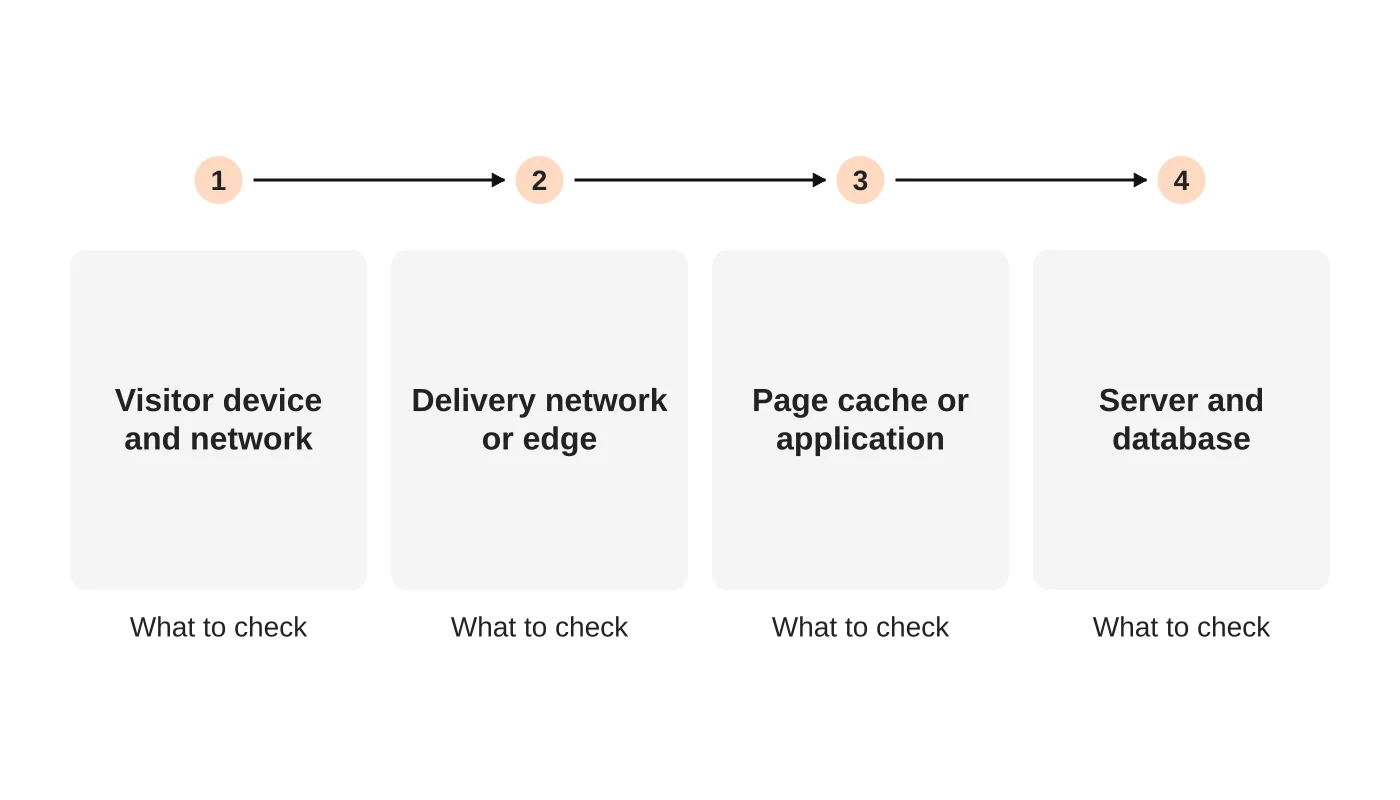
A page request passes through the visitor’s network, possibly a delivery network (CDN), your page cache or application, and the server and database. The delay can sit in any of them. Test the same page on a phone and on a computer, on mobile data and on Wi-Fi. Use a lab test and, where available, real-user data. Note which part of the load is slow: the first response, large images, scripts or layout shifts.
Step 2: understand the layers
- CDN: copies static files such as images and scripts to locations closer to visitors. It helps when distance or large static files cause the delay. It does little for slow database work.
- Page cache: stores a finished page so the server does not rebuild it for every visitor. It helps when the server is slow to build pages that rarely change.
- Better hosting: more resources or a better setup. It helps when the server is overloaded or poorly configured. See understanding hosting resource limits.
- Page weight: images, fonts and scripts. No server fix replaces optimising these.
Step 3: handle dynamic and personalised pages
Pages that change per visitor, such as carts, account areas and checkout, usually cannot be fully cached. Exclude them from page caching and test carefully so one visitor never sees another’s data. Check how your cache treats logged-in users and forms.
Step 4: change one thing and retest
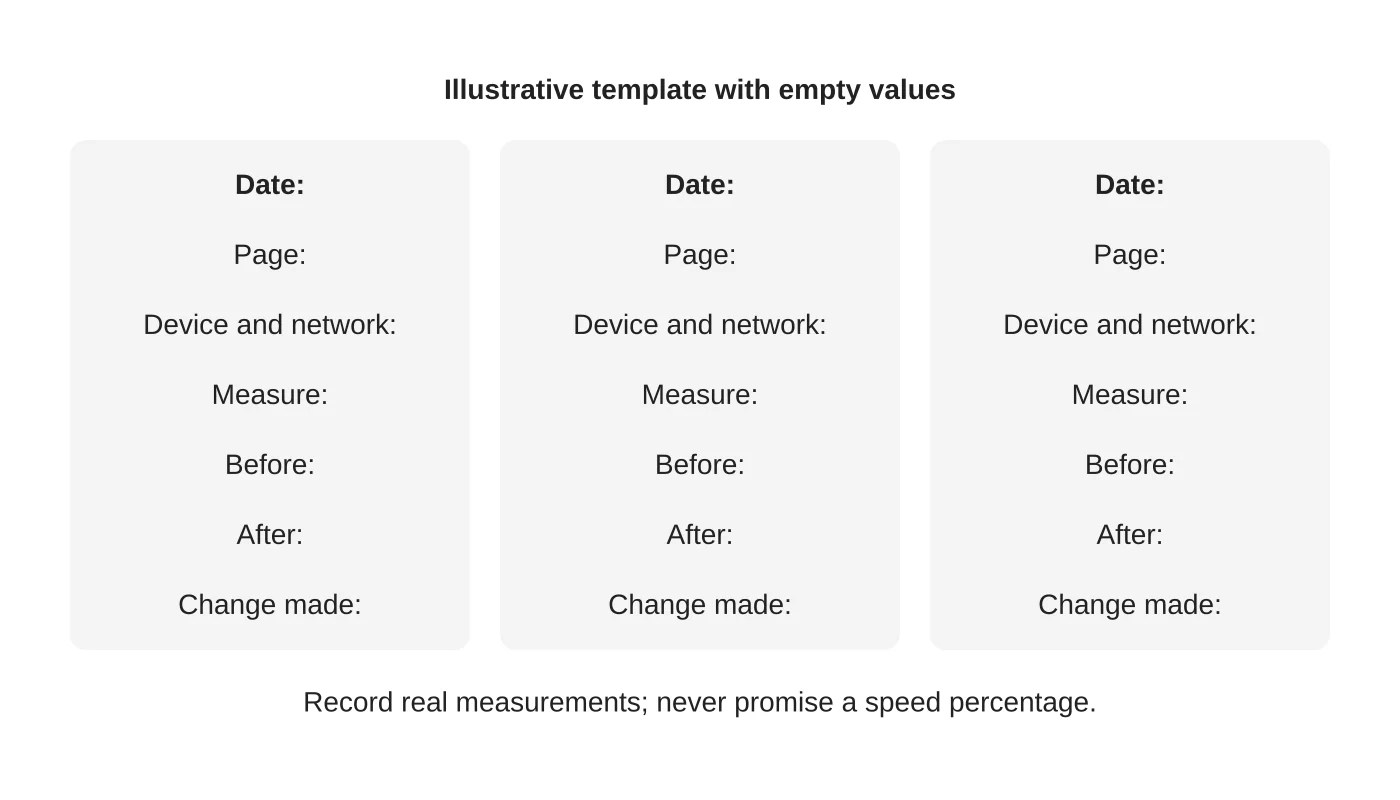
Record a baseline, change one layer, then measure again on the same pages and conditions. Repeat several times, since results vary. Keep the log. If a change does not help, undo it. A documented demo from a known site is better than claims about percentages.
Step 5: choose the next step
Use the evidence. If static files are slow for distant visitors, consider a CDN. If the server’s first response is slow, look at caching, plugins and hosting. If pages are heavy, optimise them. See advanced security in web hosting for features to check when comparing plans, and preparing for a surge if the slowdown appears under load.
Watch for side effects
CDNs and caches can serve outdated content or interfere with security settings and forms. Know how to clear them and who does it.
Frequently asked questions
Do I need a CDN for a local site?
Maybe not. Test your own visitors’ delays before deciding.
Is caching safe for online shops?
For product pages often, for carts and checkout no. Configure carefully.
Will upgrading hosting speed up images?
Not necessarily. Optimise the images too.
How often should I test?
After any significant change and before campaigns.
Sources
Find the cause
Web Design Davao’s hosting team can help locate where your site’s delay sits. Get in touch.