Quick answer
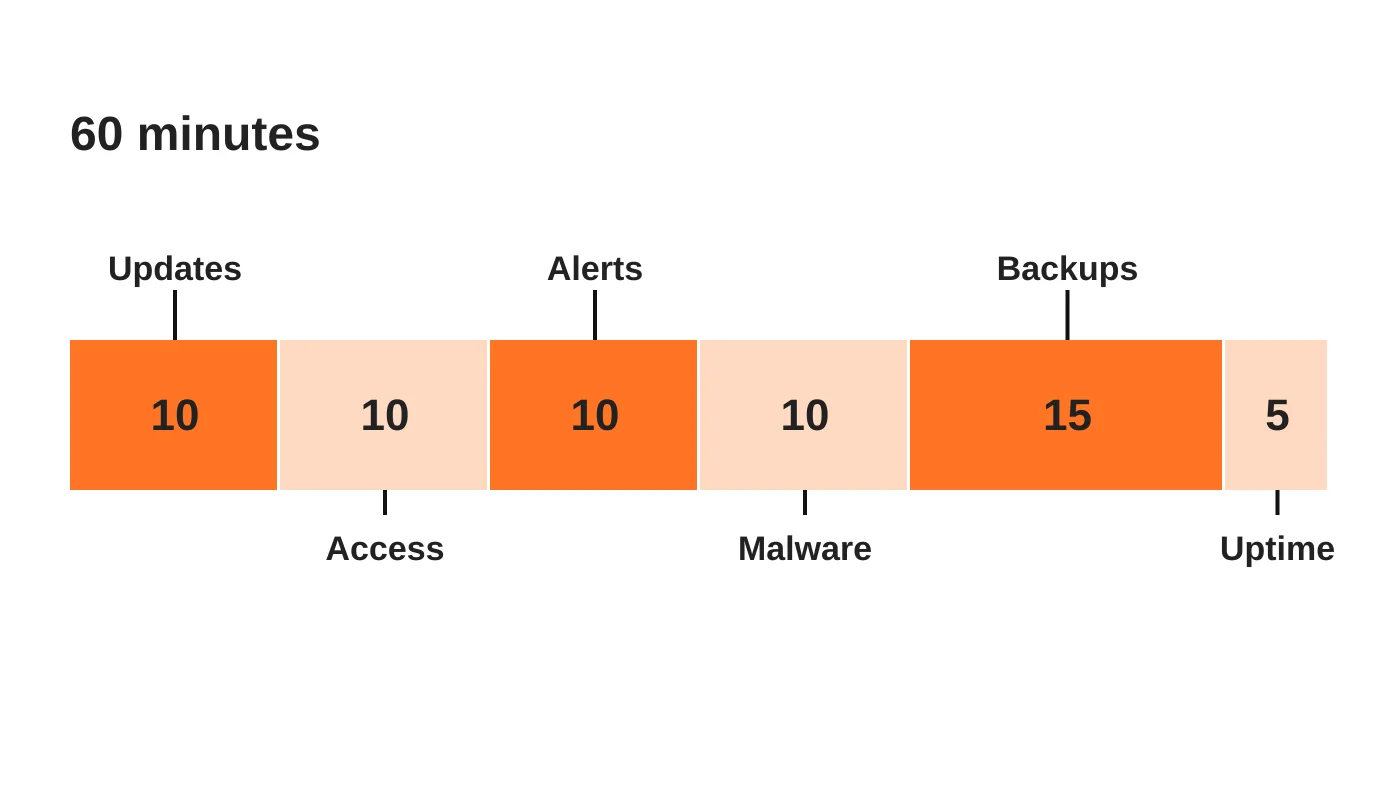
A one-hour monthly website security audit covers six checks: software updates (10 minutes), user access (10), alerts and logs (10), malware and unknown scripts (10), backups with a restore check (15) and uptime and performance (5). Take a backup before changing anything, and sort findings into fix now, contain first or escalate.
- Remove or downgrade former staff, freelancers and agencies, and confirm two-factor authentication is on for every administrator and editor.
- Confirm the latest backup is recent, stored away from the web server, and includes both files and the database.
- If you find an unknown admin or injected code, change passwords and take a backup as evidence before deleting files.
Most hacked websites were not beaten by a clever attacker. They were left unchecked. This guide gives a business owner, or whoever looks after the site, a repeatable 60-minute review covering updates, access, alerts, malware, backups and uptime, so small problems are caught before they cost sales or customer trust.
Why a monthly audit beats a one-off fix
A small, regular check catches the failures that actually lead to hacked sites. When a website is compromised, the cause is usually ordinary: plugins that were never updated, an ex-contractor still listed as an administrator, a backup that stopped running months ago, or an alert nobody read.
A monthly hour does three things for a Davao business:
- Finds drift early. Sites change every week as staff add plugins, users and tracking scripts. A monthly look shows what changed.
- Builds a baseline. After two or three audits you know what normal traffic, logins and load times look like, so odd behaviour stands out.
- Creates a paper trail. A dated checklist shows clients, insurers and regulators that you take care of the personal data your site collects.
This audit does not replace professional monitoring or a maintenance plan. It is the minimum routine every site owner can run, and it tells you when it is time to bring in help. If you want the bigger picture first, read our guide to the five layers of website security.
Before you start: what you need and how to spend the hour
Have these ready so the hour goes on checking, not hunting for logins:
- Administrator login for your CMS (for example WordPress)
- Access to your hosting control panel
- Your domain registrar login
- The location of your backups (host, plugin or cloud storage)
- Your last audit’s notes, if you have them
A workable split of the 60 minutes:
| Step | What you check | Time |
|---|---|---|
| 1 | Software updates | 10 min |
| 2 | User access | 10 min |
| 3 | Alerts and logs | 10 min |
| 4 | Malware and unknown scripts | 10 min |
| 5 | Backups and a restore check | 15 min |
| 6 | Uptime and performance | 5 min |
Take a backup before changing anything. If you plan to apply updates during the audit, do it on a quiet day, not before a campaign or sale.
Steps 1 to 3: updates, access and alerts
Step 1: Review software updates (10 minutes)
Outdated software is the most common way in for attackers, so start here.
- Check for pending updates to your CMS core, themes and plugins.
- List any plugin or theme that has not been updated by its developer in a long time, or that has been removed from its marketplace. Plan to replace it.
- Delete plugins and themes you do not use. Deactivated is not the same as removed.
A problem looks like: a dozen pending updates, or a plugin that is several major versions behind.
Step 2: Audit user access (10 minutes)
Open your user list and ask of every account: do we know this person, and do they still need this level of access?
- Remove or downgrade former staff, freelancers and agencies.
- Look for administrator accounts you did not create.
- Keep administrator rights to the smallest number of people who need them.
- Confirm two-factor authentication is on for every administrator and editor.
A problem looks like: an unknown admin, a shared login used by several people, or an ex-contractor who still has full access. If you work with freelancers or virtual assistants, our offboarding checklist covers this in detail.
Step 3: Check alerts and logs (10 minutes)
Most sites already generate warnings. The common failure is that nobody reads them.
- Read your security plugin alerts and any emails from your host.
- Look at failed login attempts. A handful is normal; hundreds from one source is an attack in progress.
- Check for unusual traffic spikes, especially overnight or from countries you do not serve.
A problem looks like: repeated failed logins on the admin account, or traffic that does not match any campaign you ran.
Steps 4 to 6: malware, backups and uptime
Step 4: Scan for malware and unknown scripts (10 minutes)
Run a full scan with your security plugin or your host’s scanner, then look at what visitors actually receive.
- Open your key pages in a private browser window. Do they redirect somewhere unexpected, or show pop-ups you did not add?
- Check for scripts that load from domains you do not recognise. Your browser’s developer tools (Network tab) list every request.
- Search Google for your own site name. Spam titles or a “this site may be hacked” label in results are a red flag.
A problem looks like: a redirect that only happens on mobile or only for first-time visitors. Attackers often hide changes from the site owner.
Step 5: Verify backups and test a restore (15 minutes)
A backup you have never restored is a hope, not a plan.
- Confirm automatic backups are running and the latest one is recent.
- Confirm a copy is stored away from the web server, for example in separate cloud storage.
- Check that the backup includes both files and the database.
- Once a quarter, restore a backup to a test copy of the site and confirm it works.
A problem looks like: the newest backup is weeks old, or it sits only on the same server as the site.
Step 6: Review uptime and performance (5 minutes)
Slowdowns and outages are often the first visible sign of a deeper problem, such as bot traffic or injected code.
- Review your uptime monitor for outages since last month.
- Compare page speed with your baseline.
- Check that your SSL certificate is valid and not close to expiry.
A problem looks like: unexplained downtime, or a site that has slowly become much slower with no new content.
Before your next round of changes, read how to update WordPress safely with staging and backups.
What to do when the audit finds something
Sort each finding into one of three buckets before you act.
- Fix now (housekeeping): apply updates, delete unused plugins, remove stale accounts, turn on two-factor authentication.
- Contain first (suspicious): if you see an unknown admin, injected code or unexplained redirects, change all passwords, take a fresh backup of the current state for evidence, and restrict access while you investigate. Do not just delete files, as you may lose the evidence of how the attacker got in.
- Escalate (likely breach): if customer data may have been exposed, get professional help immediately and check your legal duties.
Breach notification rules depend on where your customers are. In the Philippines, the National Privacy Commission says it must be notified within 72 hours of knowledge, or reasonable belief, that a notifiable personal data breach has occurred. Businesses covered by Australia’s scheme, which includes many Davao companies serving Australian clients, must complete an assessment within 30 calendar days of suspecting an eligible data breach, and notify promptly if one is confirmed. Which rules apply to you is a legal question, so confirm with a lawyer or your data protection officer.
For a deeper look at recognising a compromise, read our guide to the signs your website has been hacked. For the cost and legal side, see what a website breach really costs a Davao business.
Your monthly audit checklist
Copy this table, add the month, and keep one per audit.
| Area | Check | Done | Notes |
|---|---|---|---|
| Updates | CMS, themes and plugins are current | ||
| Updates | Unused or abandoned plugins removed | ||
| Access | Every user account is known and still needed | ||
| Access | Admin accounts kept to the minimum | ||
| Access | Two-factor authentication on for admins and editors | ||
| Alerts | Security and hosting alerts reviewed | ||
| Alerts | Failed-login and traffic patterns look normal | ||
| Malware | Full scan run, no findings | ||
| Malware | No unknown redirects or third-party scripts | ||
| Backups | Latest backup is recent and stored off the server | ||
| Backups | Restore tested this quarter | ||
| Uptime | No unexplained outages; SSL valid; speed on baseline |
To see whether this work is being done, check what a monthly website maintenance report should show.
Frequently asked questions
How often should I run this audit?
Monthly is a sound default. Run it more often if your site takes payments, holds customer accounts or changes frequently, and run an extra one after any major update or staff change.
Who should run it?
Whoever has administrator access and understands the site, which can be a trained staff member or your web provider. Have someone other than the person who built the site review the results at least quarterly, so blind spots get caught.
Does this replace a maintenance plan?
No. The audit is a routine check. A website maintenance plan adds continuous monitoring, tested recovery and expert response, so problems are handled between audits.
What if I find something and do not know what it means?
Take a backup, do not delete anything, and ask a professional to review it. Acting quickly matters more than acting alone.
How much does professional help cost?
Pricing depends on your site and what you need. Contact us for a quote.
From the Wired for Growth newsletter
This checklist builds on the issue The 1-Hour Website Security Audit Every Business Should Run Monthly in Duarne Bernhagen’s LinkedIn newsletter, Wired for Growth. Subscribe for weekly ideas on using technology and AI to grow a business. A companion issue, The 5 Layers of Website Security Every Business Needs, explains the bigger system this audit sits inside.
Want someone else to run it for you?
Web Design Davao’s website maintenance and security service covers updates, monitoring, tested backups and incident response, so this audit becomes something you review rather than something you do. Book a free site security check to see where your website stands today.
Sources
- NPC: breach notification within 72 hours, National Privacy Commission, Philippines
- OAIC quick reference guide for responding to data breaches, Office of the Australian Information Commissioner