Quick answer
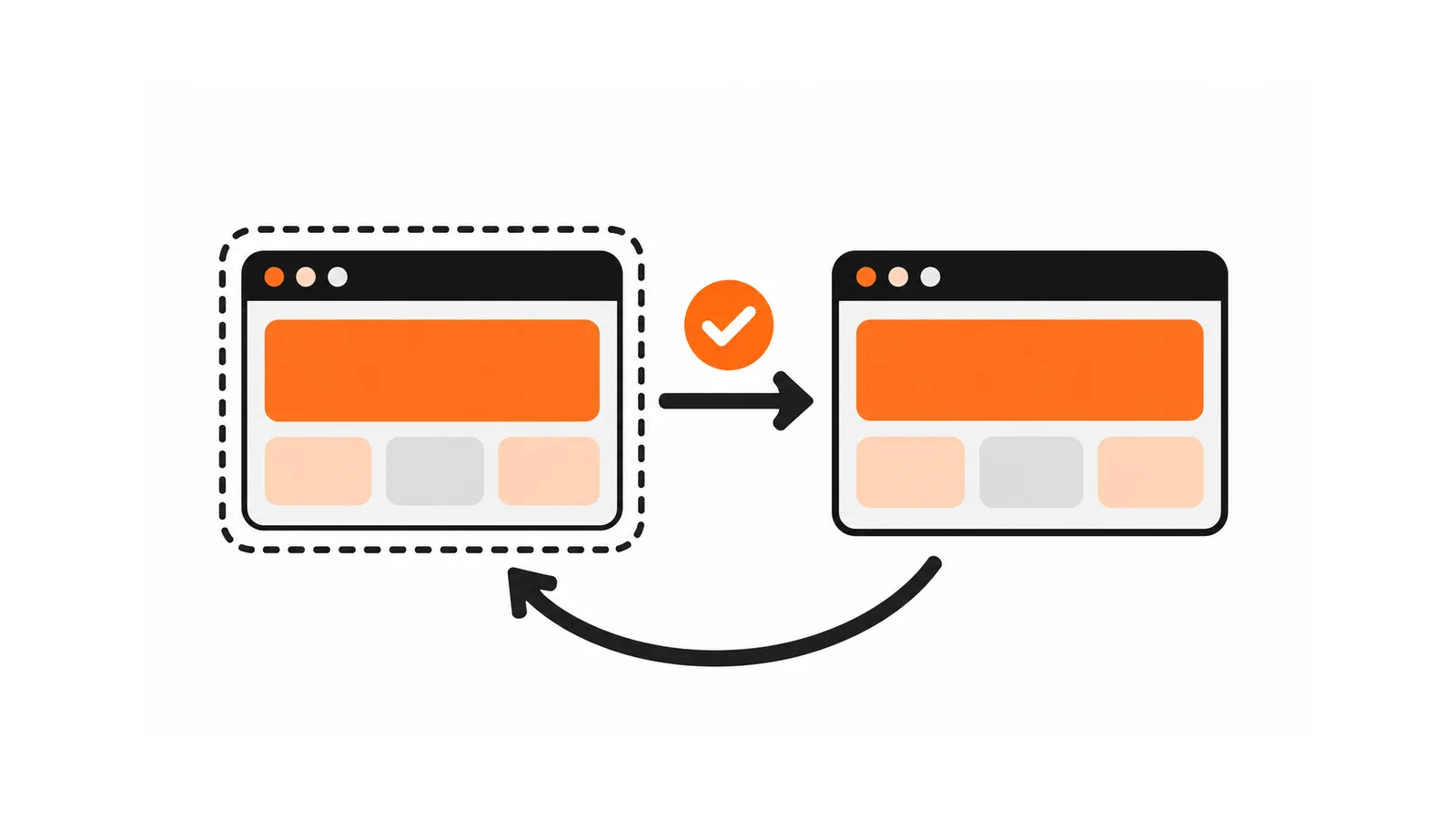
Update WordPress safely by listing what will change, preparing a staging copy and a backup you have tested by restoring, applying updates on staging, testing against written acceptance criteria, then scheduling the live update with a fresh backup. If anything fails, stop and roll back from the backup rather than patching live.
- Mark plugins that affect forms, payments, bookings or search, since a failure there costs the most.
- Disable anything on staging that could send real emails, charge cards or sync with live systems.
- Log each update with date, versions, tester, result and any rollback, as evidence for the monthly report.
Updating WordPress, a theme or a plugin is routine, until an update breaks the contact form on the day a campaign starts. A repeatable release-and-rollback workflow turns updates into a controlled change instead of a gamble.
This guide gives that workflow and a demo checklist with acceptance criteria. It does not replace your plan’s scope; see what a maintenance plan should include for what is covered, and the security audit checklist for the wider review. Procedures should be rehearsed on a controlled test site. Check current guidance from WordPress.org and each vendor.
Step 1: check the change scope
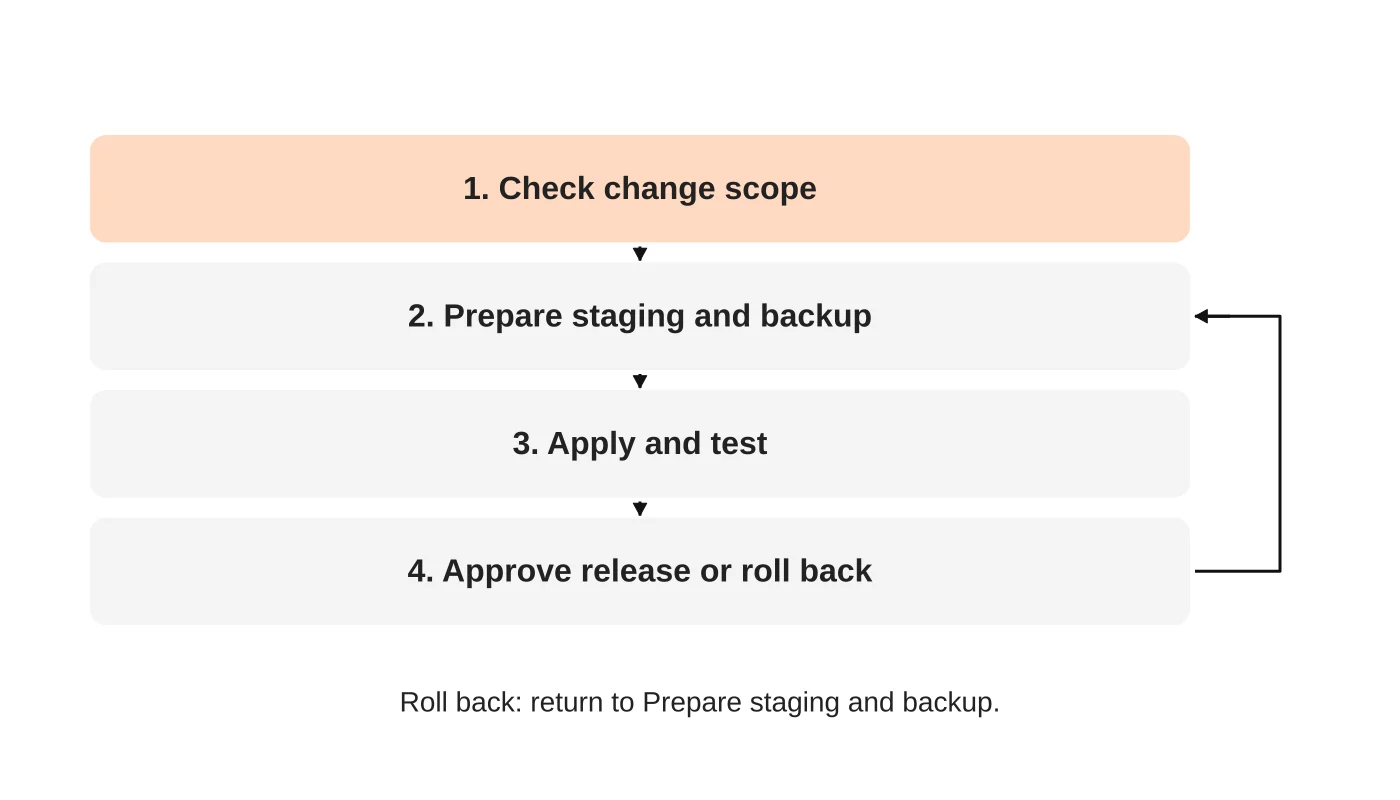
List what will change: core, themes, plugins, versions before and after. Read each changelog and any security notice. Mark which plugins affect forms, payments, bookings or search, since a failure there costs the most. Decide whether the update is urgent, such as a verified security fix, or can wait for a quiet period.
Step 2: prepare staging and a tested backup
Create a staging copy of the live site, with the same versions and similar data. Take a full backup of files and database before changing anything, and confirm you can restore it. A backup you have never restored is an assumption. Note where it is stored and who can restore it.
On staging, disable anything that could send real emails, charge cards or sync with live systems, so testing does not affect customers.
Step 3: apply and test
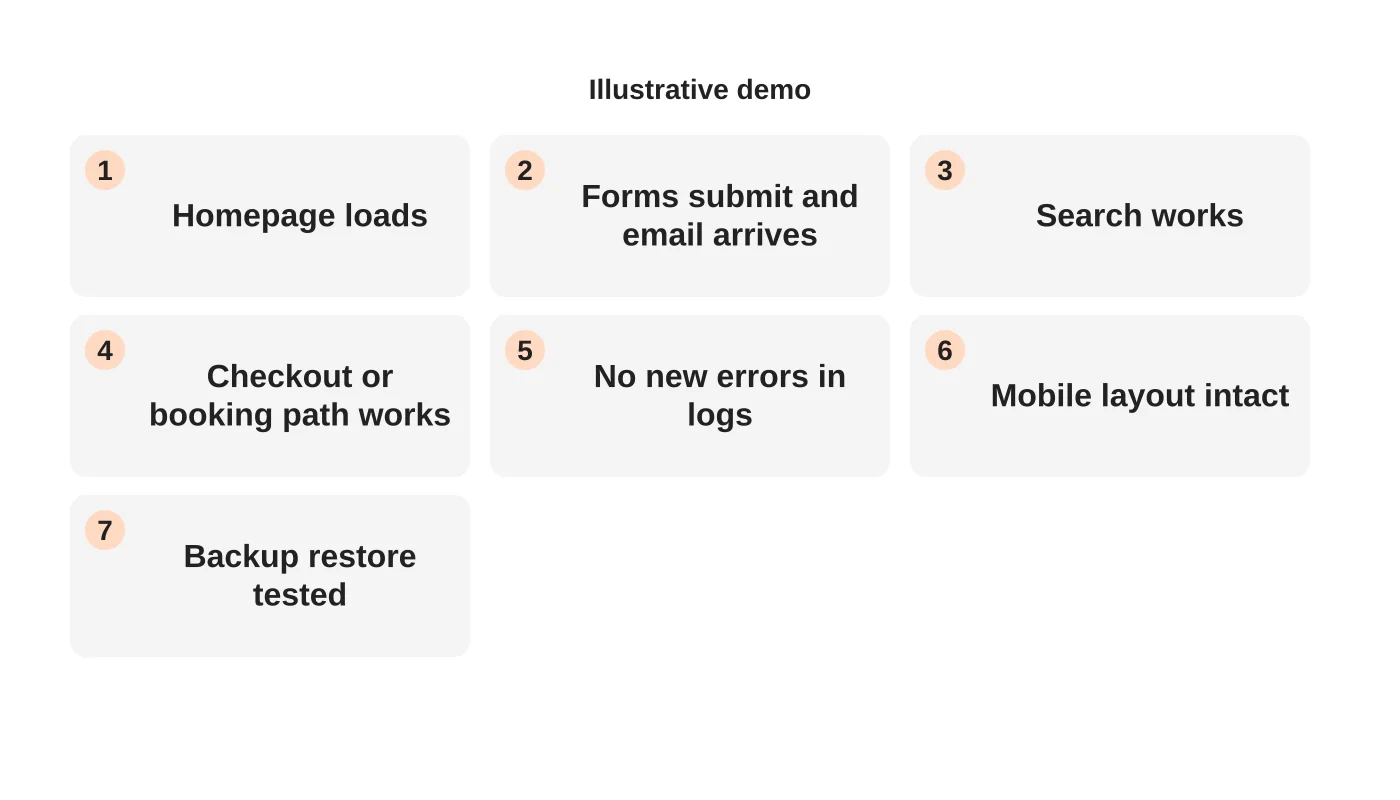
Apply the updates on staging, one group at a time if you can, so you know which one caused a problem. Then test against written acceptance criteria, not a quick glance:
- Key pages load and look right on a phone and a computer.
- Every form submits and the notification is received.
- Search, filters, booking or checkout paths still work.
- No new errors appear in the site’s logs or browser console.
Record who tested, what and when.
Step 4: approve the release or roll back
If the criteria pass, schedule the live update for a low-traffic time, take a fresh backup, apply the same changes and repeat a short version of the tests. If anything fails, stop and roll back from the backup rather than patching live. Write down what failed so the next attempt starts informed. See diagnosing a plugin conflict when the cause is not obvious.
Step 5: keep a record
Log each update: date, versions, tester, result and any rollback. This record is the evidence for the monthly report; see what a monthly maintenance report should show. For security-driven updates after an advisory, see vulnerability triage.
When not to wait
A verified security fix for a plugin you actually run may justify a faster path. Faster still means backup, test and rollback, only compressed.
Frequently asked questions
Can I use automatic updates?
For low-risk updates with good monitoring, perhaps. Decide per component and keep backups.
Do I need staging for a small site?
A staging copy is the safest way to test. If you cannot have one, take a tested backup and update at a quiet time.
How often should I update?
On a regular schedule, with urgent exceptions.
Who should approve a release?
The person accountable for the site, using the agreed criteria.
Sources
Make updates routine
Web Design Davao’s website maintenance team can discuss ongoing website care and clear support responsibilities. Get in touch.
Related guide: How to Review a WordPress Plugin That Nobody Remembers Installing