Quick answer
Decide whether you need a client portal by mapping recurring document exchanges, noting what goes wrong today, and comparing portal and email workflows for client steps, staff steps, security controls and support load. If nothing goes wrong with email, you may not need one. Run a one-month pilot with willing clients before expanding.
- List each recurring exchange: what moves, how often, how sensitive it is, who needs access and what fails today.
- Do not collect sensitive uploads through an ordinary contact form; consider a secure document-sharing link or upload form instead.
- Keep an alternative for clients who refuse a portal, and write down offboarding steps for removing access.
Many service firms exchange documents by email without thinking about it. A client portal can be safer and tidier, but it adds cost, support work and a new login. This guide helps you decide if you need one, using your own workflows instead of a vendor’s pitch.
It suits accounting firms and other providers that exchange documents and status updates. The documents and scenarios are synthetic, and the guide is not legal or security advice.
Step 1: map recurring exchanges
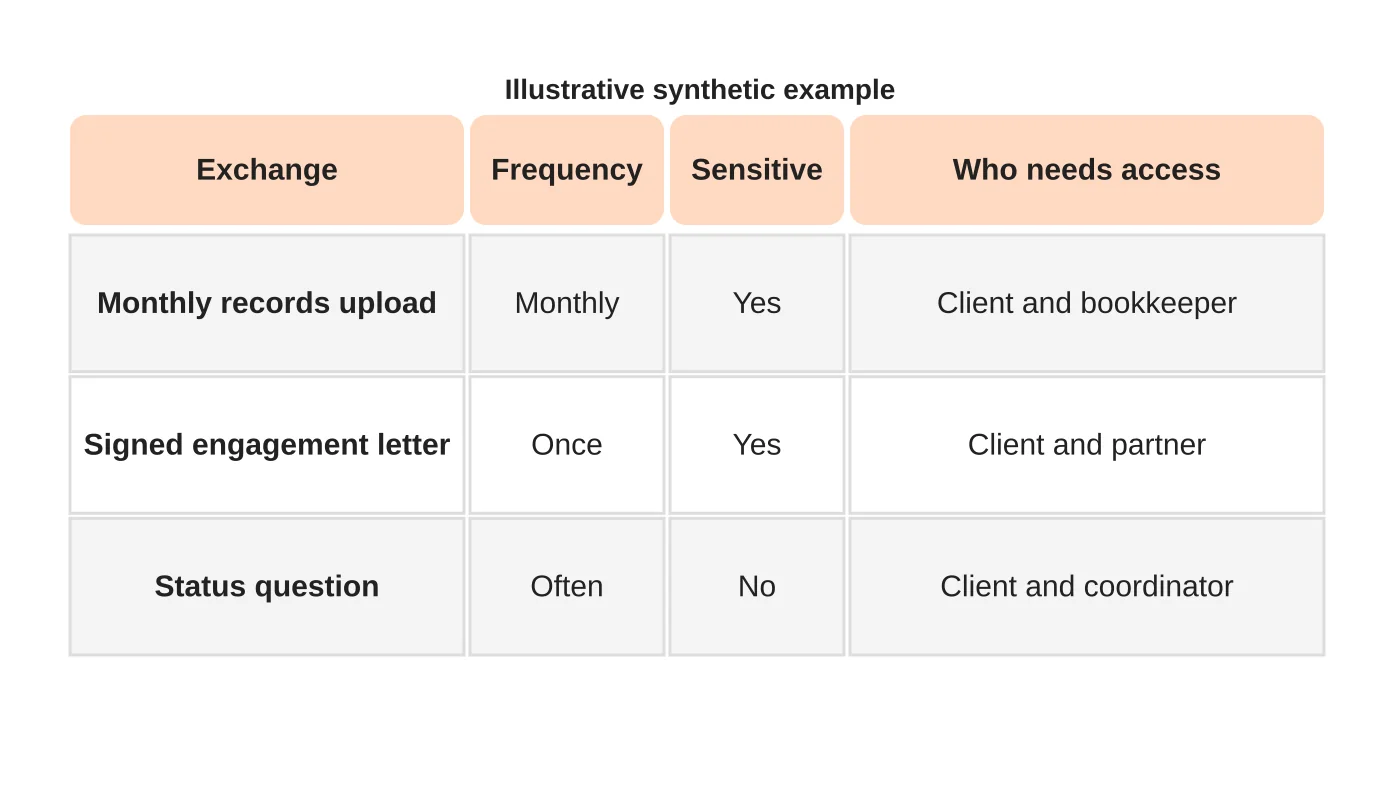
List every recurring exchange with a client: what moves, how often, how sensitive it is and who needs access. Note what goes wrong today: lost attachments, version confusion, repeated chasing or documents sitting in personal inboxes. If nothing goes wrong, you may not need a portal.
Step 2: identify access requirements
For each exchange, ask:
- Who sends and who can see it? Individual users, teams or both.
- Does it need an audit trail? Who viewed or downloaded what.
- Does it need approval or signing?
- How long must it be kept, and who deletes it?
- Can clients manage their own login?
Sensitive financial and personal documents carry duties under privacy law. See the Data Privacy Act checklist. This is general information, not legal advice. Check your situation with a qualified adviser.
Step 3: compare portal and email workflows
Compare, for the same exchange: steps for the client, steps for staff, security controls, failure points and support load. Email with a general inbox is simple but easy to misuse. A portal adds control but adds a login that some clients will forget. A middle path is a secure document-sharing link or a form designed for uploads.
Do not collect sensitive uploads through an ordinary contact form. See the accounting firm website checklist for how enquiry and secure document intake differ.
Step 4: consider build, buy or configure
Off-the-shelf tools cover many needs. Custom builds suit unusual workflows. See off-the-shelf software versus custom web apps for the economics. Whichever you choose, someone must support it. See who looks after a web app after launch.
Step 5: run a small pilot
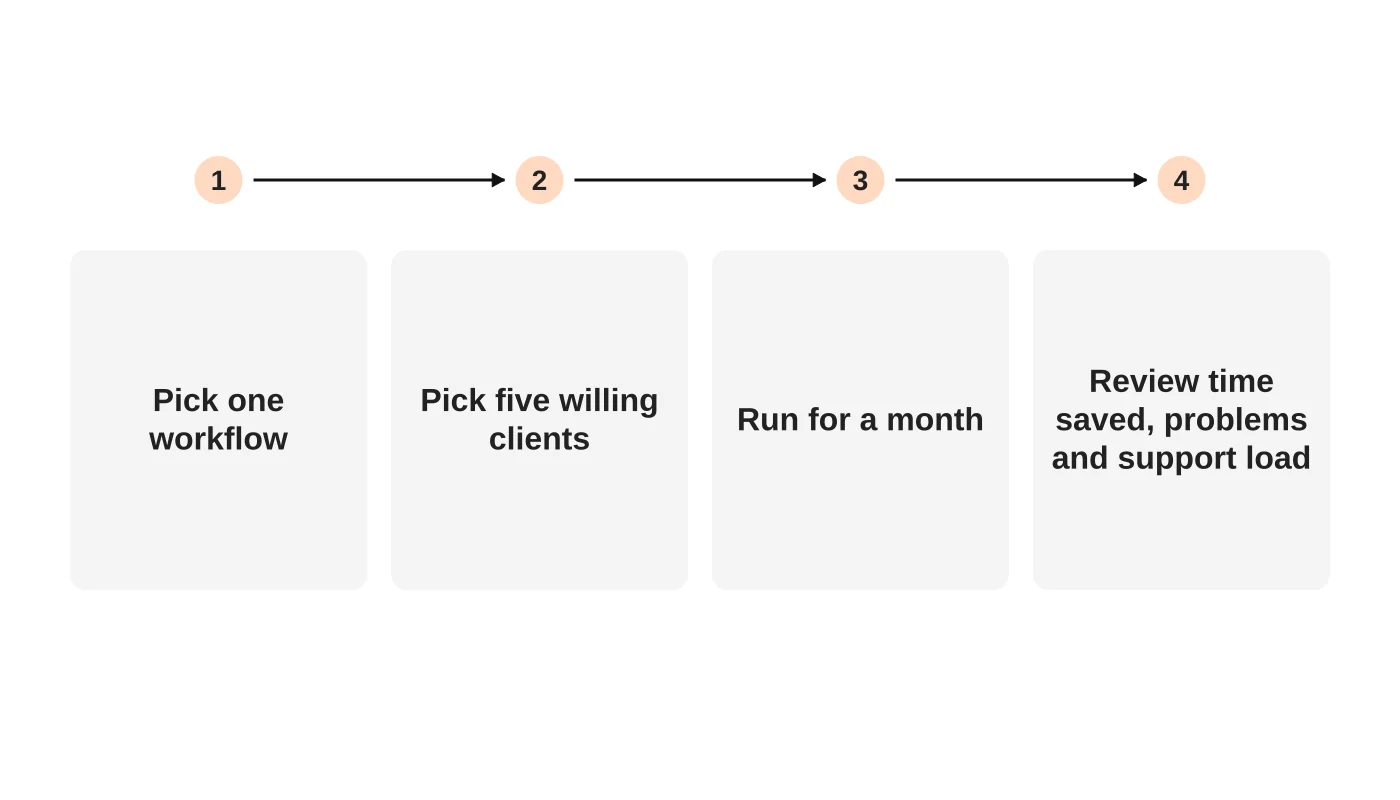
Pick one workflow and a handful of willing clients. Run it for a month. Review time saved, problems and support load, and ask clients what they thought. Decide to expand, change or stop. Write down the offboarding steps for removing access.
What the website should show
If you launch a portal, give it a clear entry point, explain what it is for and what not to send by email, and describe how to get help. Do not claim security properties you cannot back up.
Frequently asked questions
Is a portal always more secure?
Not automatically. It depends on configuration, access management and how it is used.
What about clients who refuse a portal?
Keep an alternative for those cases, and set a policy on what may be emailed.
Does a portal need to be on my website?
Not necessarily. It can be a separate service linked from your site.
How much does it cost?
It depends on the option you choose. Compare current written quotes, not assumptions.
Sources
Decide your workflow
Web Design Davao’s web design team can discuss whether a secure workspace fits your clients’ workflows. Get in touch.