Quick answer
To help buyers find the right item in a large catalogue, collect the words buyers actually use, choose a small set of filters that separate products, map synonyms and common misspellings, and design a useful no-results page. Then test on a phone with real tasks and review top and zero-result searches each month.
- Choose filters buyers decide with, such as size, material, capacity, rating, brand and availability basis, ordered by use.
- When nothing matches, say so, suggest a shorter term, show category links and offer a quote request.
- Ask your developer how filtered results are handled, so the main category page stays the one you want found.
Once a catalogue grows beyond a few dozen items, buyers rely on search and filters. If the site does not understand their words, they call or leave. This guide covers the on-site product-finding experience for equipment suppliers and distributors.
It is about usability on your own site. How categories rank in search engines is covered in category page SEO for equipment suppliers. The examples are illustrative.
Step 1: collect buyer search terms
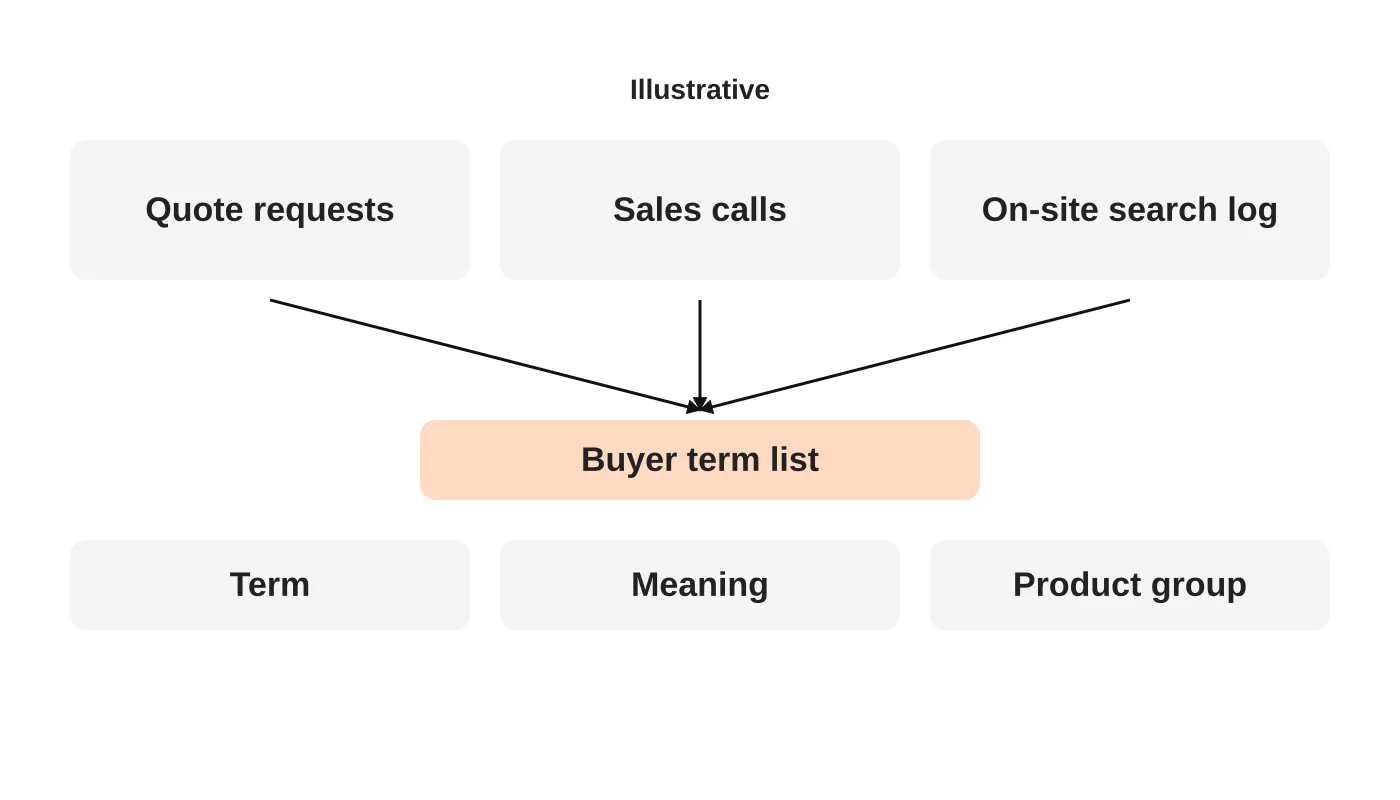
Buyers rarely use your internal product names. Collect the words they use from quote requests, sales calls and, if you have it, your site search log. Write each term, what it means and which product group it should reach. Include abbreviations, brand names buyers type and common misspellings.
Step 2: choose useful filters
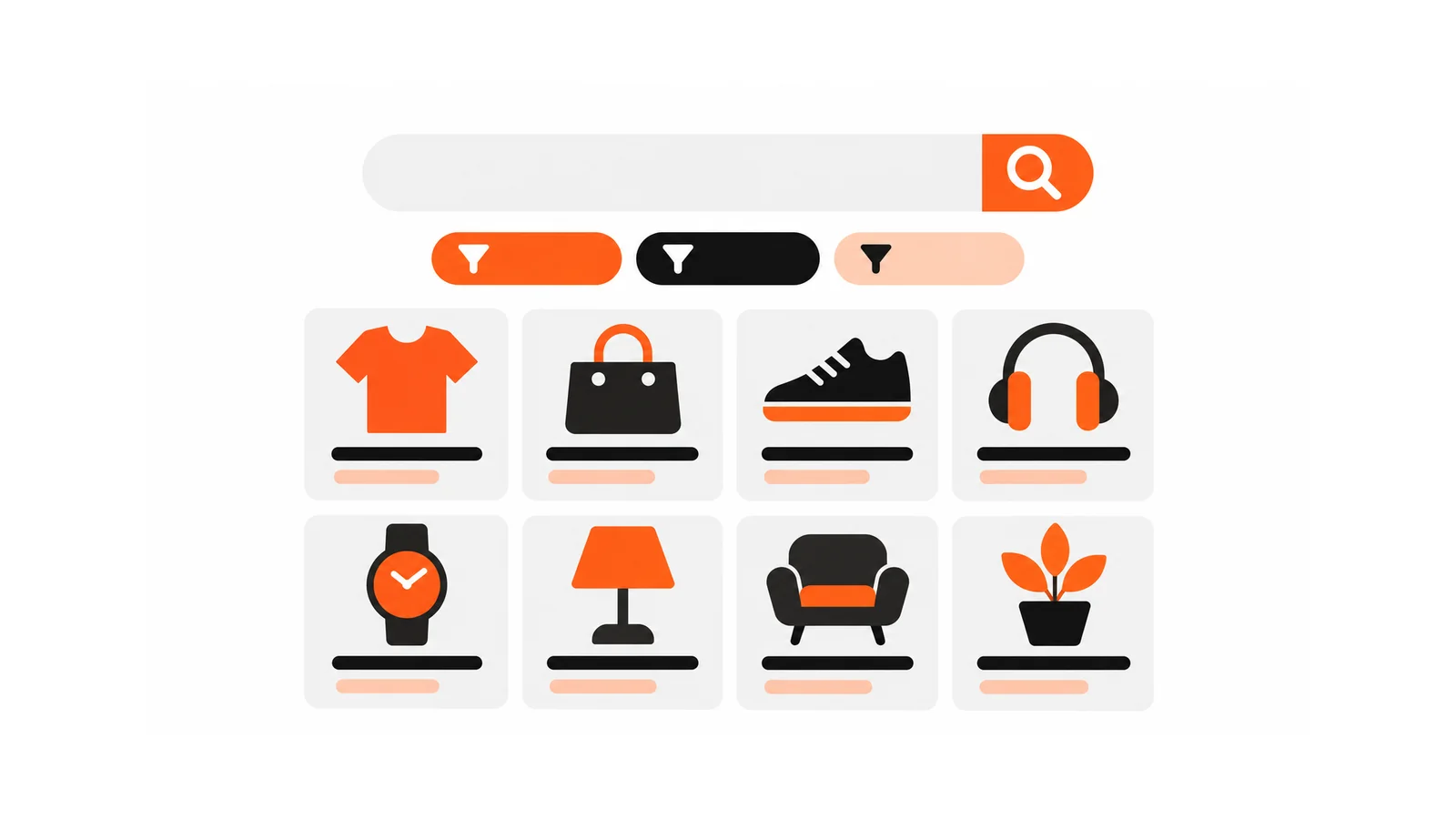
A filter is useful only if buyers decide with it. Pick a small set from the specifications that separate products: size, material, capacity, rating, brand and availability basis. Order them by how often they are used. Avoid filters with one value or many empty values.
- Show the number of results for each choice, if your system supports it.
- Let buyers clear a filter easily.
- Use the same units everywhere. See product pages for shoppers and AI assistants for specification wording.
Related reading: Turn Supplier PDF Catalogues into Useful Website Product Pages.
Step 3: handle synonyms and typos
Map the buyer terms you collected to the right products. Test common misspellings. If the search system supports synonyms, maintain them as a living list and review it monthly.
Step 4: design the no-results state
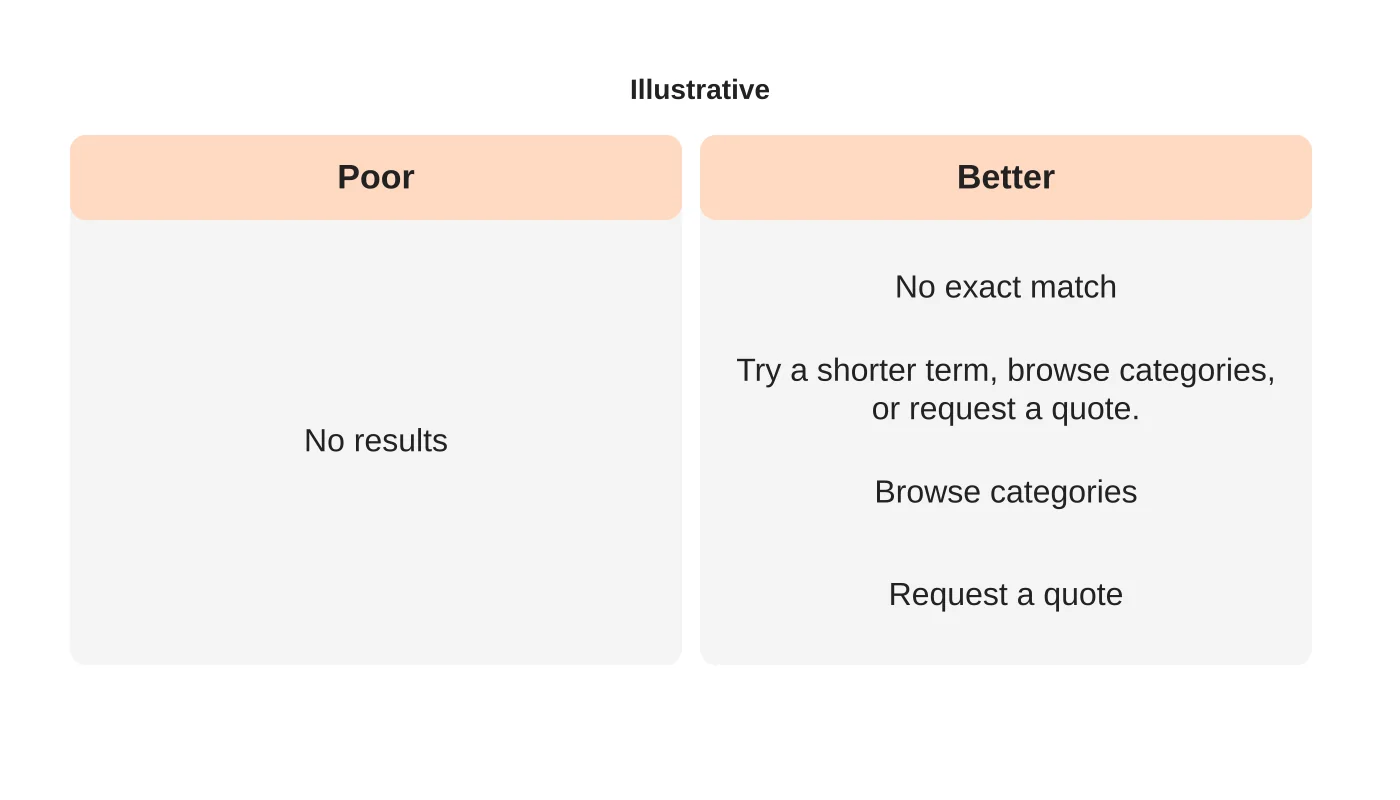
A dead end loses enquiries. When nothing matches, say so, suggest a shorter term, show category links and offer a quote request. Log zero-result searches. They show demand you may not serve, and wording you have not covered.
Step 5: test on mobile
Most buyers browse on a phone at some point. Test with real tasks: “find an item with these specs”, “filter by size”, “clear filters”, “ask for a quote”. Check that filter panels open and close cleanly, buttons are large enough and results load quickly. See how to improve website usability and website speed.
Keep filter pages tidy for search engines
Filters can create many near-duplicate addresses. Ask your developer how filtered results are handled so that the main category page remains the one you want people to find. See category page SEO.
Review regularly
Each month, read the top searches, the zero-result searches and the filters used. Fix the biggest gaps first.
Frequently asked questions
Do I need a separate search tool?
Not always. Start with what your platform offers and test it.
How many filters are too many?
When buyers stop using them. Check your usage.
Should search show prices?
Only if prices are stable and honoured. Otherwise show a quote button.
Is AI search worth it?
It may help with natural-language queries, but test it on your own terms first.
Sources
Improve product finding
Web Design Davao’s web design team can discuss search and filters for your catalogue. Get in touch.