
Quick answer
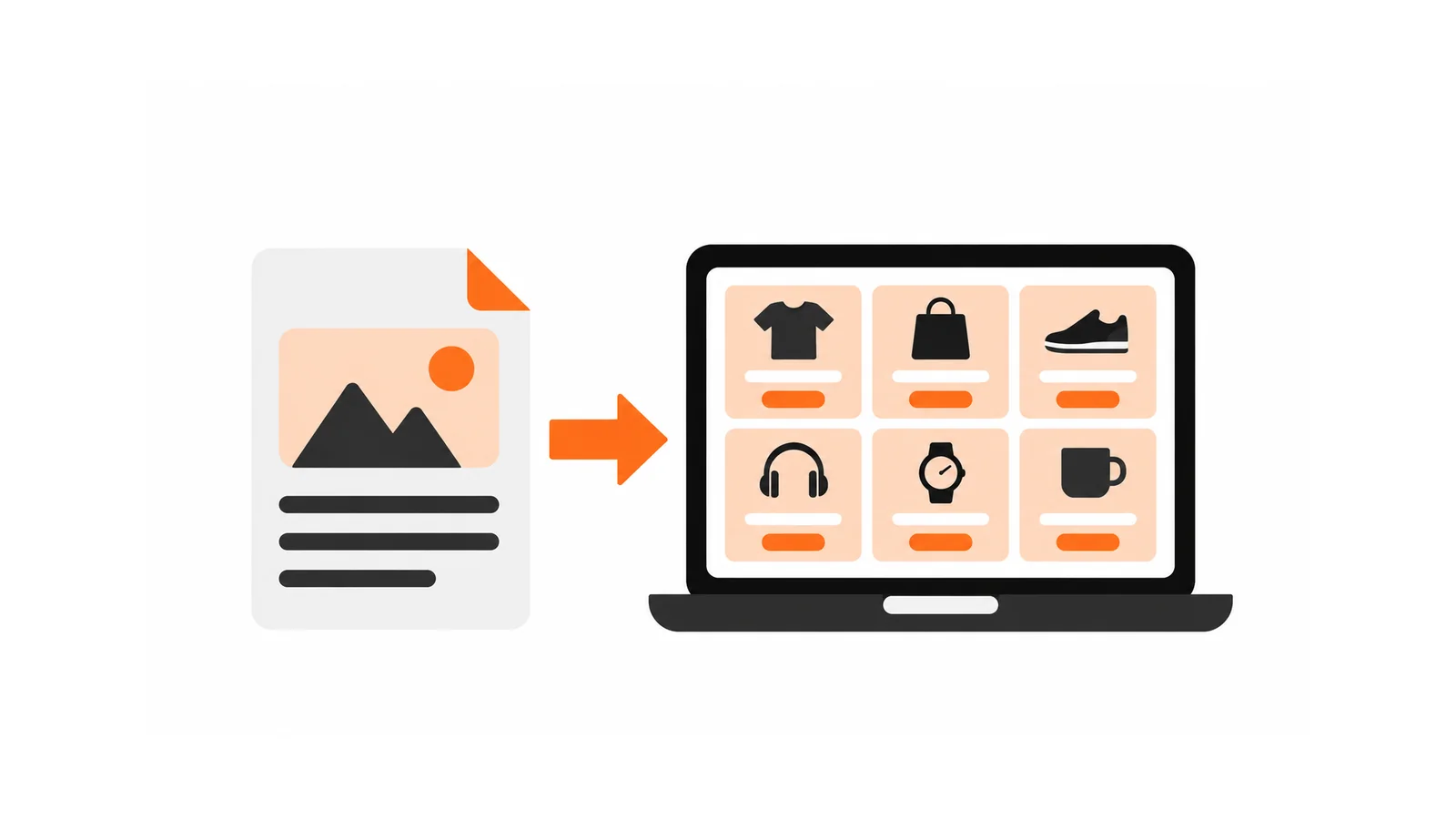
Turn a supplier PDF catalogue into website product pages by inventorying and cleaning the data, organising categories by how buyers think, building one master product sheet, and creating category and product pages with specifications in text. Add a quote button, and keep any PDF in sync or retire old versions.
- Write your own descriptions, and do not copy the manufacturer’s text or images without permission.
- Start with your highest-selling categories and check results after the first batch.
- Redirect or retire old PDFs so outdated prices are not the first search result.
A PDF catalogue is a familiar way to show your range. But PDFs are hard to search, hard to compare and slow to open on a phone. Search engines and AI assistants read them less reliably than web pages, and they go out of date without anyone noticing.
This guide shows how to turn a PDF catalogue into a website catalogue in a manageable way. It is a practice guide with no performance claims. For the model choice, see catalogue website versus online store.
Why move beyond the PDF
- Findability: buyers search for a product or specification, not a PDF title.
- Comparison: web pages can place products side by side.
- Mobile use: a long PDF is awkward on a phone.
- Accuracy: one web source is easier to update than many copies.
You can keep the PDF as a download. It should no longer be the only home of your product information.
Read next: How to Audit Your Website Content: Keep, Refresh, Merge or Delete.
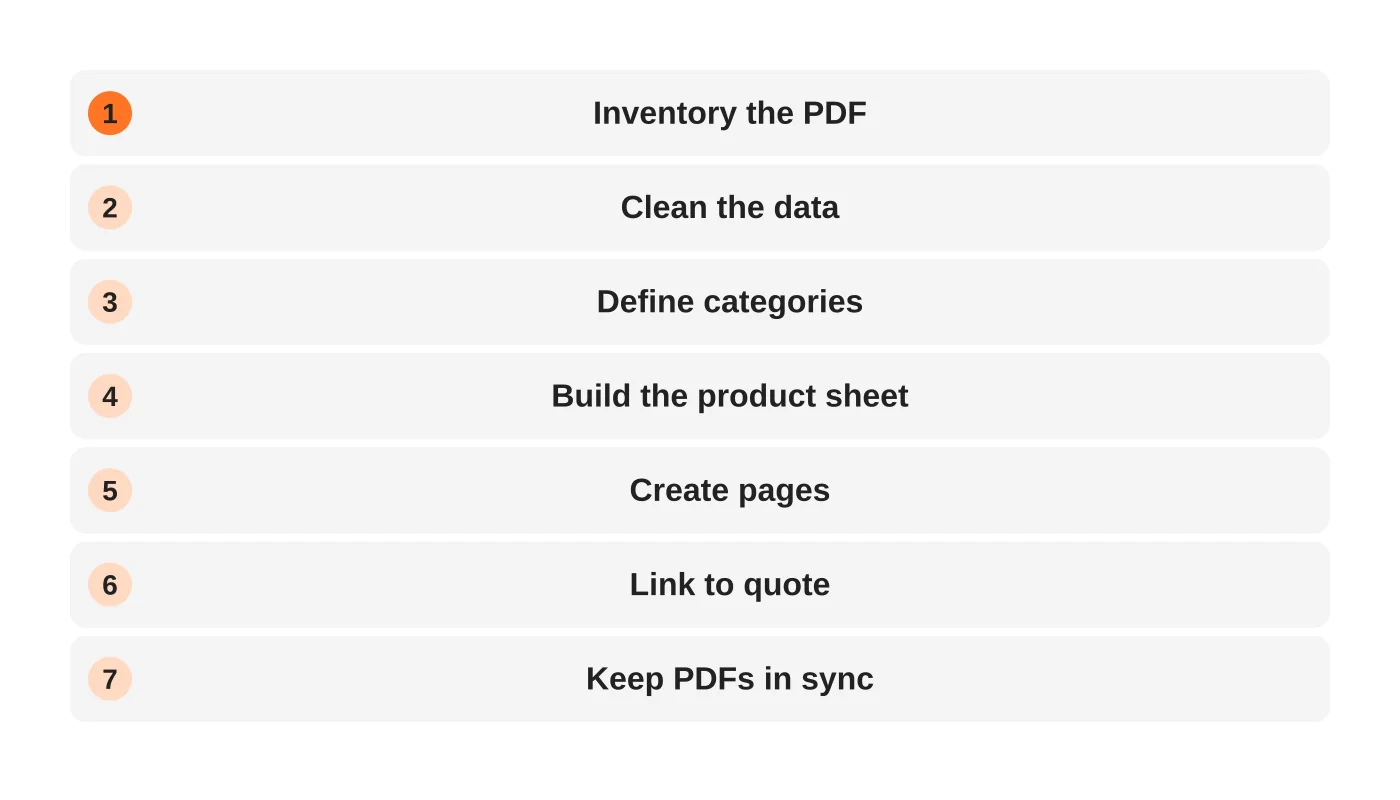
A migration plan
1. Inventory the PDF
List every product, page and image in the catalogue. Note what is missing, outdated or inconsistent.
2. Clean the data
Fix names, codes and units. Remove discontinued items. Confirm specifications against supplier data. Decide which products you want to feature first.
3. Define categories
Organise by how buyers think. See category page SEO for equipment suppliers.
4. Build the product sheet
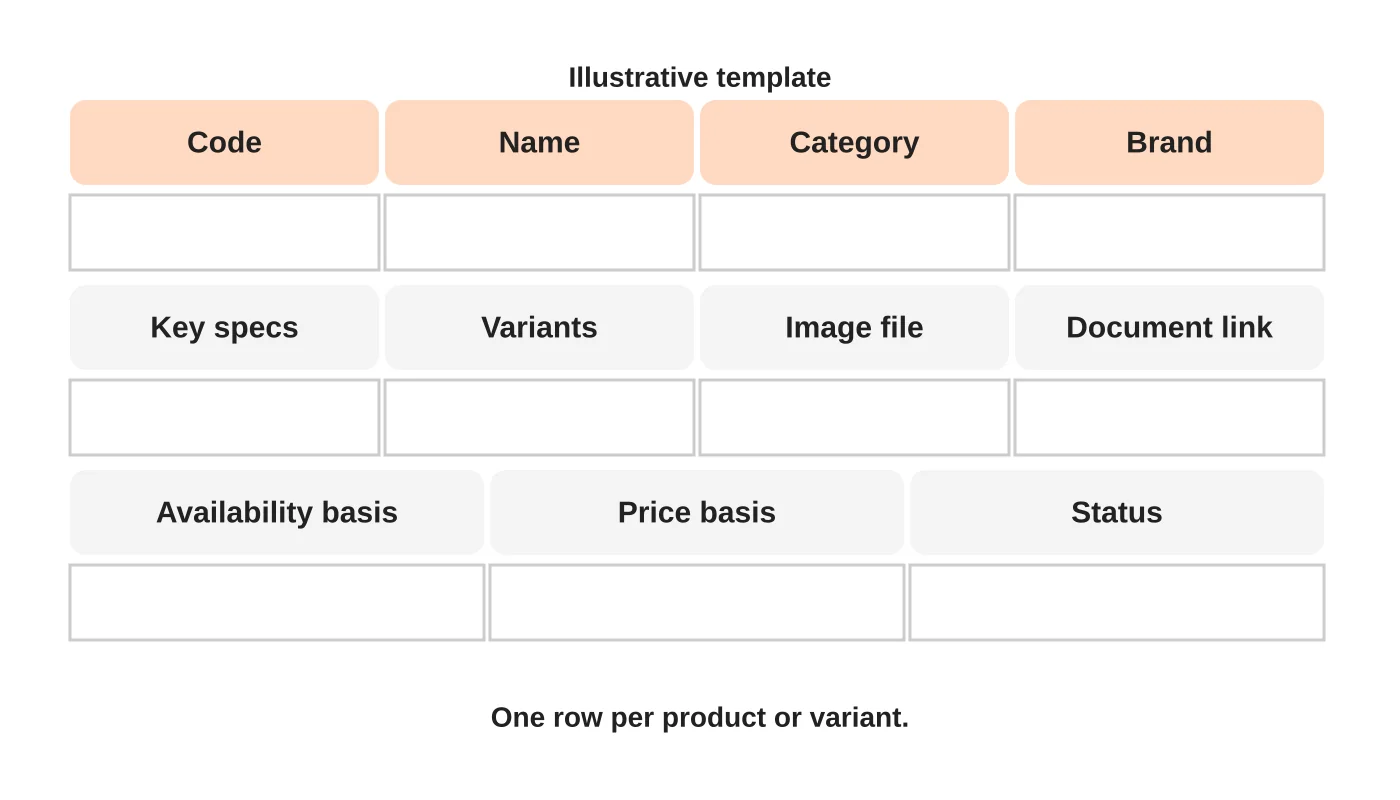
Put everything into one spreadsheet: one row per product or variant, with the columns shown. This sheet becomes your master record. It also makes it easy to import into a website system.
5. Create the pages
Build category pages and product pages from the sheet. Write specifications in text. Follow product pages for shoppers and AI assistants. Write your own descriptions and add selling information from your sales team. Do not copy the manufacturer’s text or images without permission.
6. Link to quote
Add a quote button on every product and category page. See wholesale request for quote websites.
7. Keep PDFs in sync
Generate PDFs from the same data, or update them whenever the sheet changes. Put a date or revision on each. Remove old versions from the site and from search by redirecting or deleting them. Tell your sales team which version to send.
Read next: How to Use Keywords Effectively for Better Search Engine Rankings.
Avoid common problems
- Copying PDF text into one giant page. Split by product and category.
- Leaving the old PDF as the first search result with old prices. Date or retire it.
- Hiding specifications in images.
- Thin pages for every variant. Use variant tables.
- Breaking links to PDFs customers have saved. Use redirects where you can. See what a maintenance plan should include.
Plan the order of work
You do not have to move the entire catalogue at once. Start with your best-selling categories and move on as you verify the data. Check results after the first batch: are enquiries suitable, what do buyers ask and what is missing?
Check speed and accessibility
Compress images, test on mobile data and make sure text alternatives exist. See website speed and accessibility basics.
Frequently asked questions
Should I keep the PDF?
Yes, as a convenience download, kept in sync.
Can I automate the import?
Often yes, from a clean spreadsheet. Ask your developer what your site platform supports.
How long does it take?
It depends on product count and data quality. Data cleaning is usually the longest step.
Will it help me show up in search?
Better pages can help buyers and search systems understand your products. No result is guaranteed. See how long SEO takes.
Sources
Plan your catalogue move
Web Design Davao’s web design team can help plan a move from PDF catalogue to a searchable website. Get in touch.